Webcam Teleprompter: 4 Ways to Read and Look at the Lens
A webcam teleprompter is any setup that shows your script as close to the webcam lens as possible, so you can read while looking at the camera. You can put the text on the computer screen under the lens, add a hardware prompter in front of the webcam, or place a phone or tablet directly below it. Gazecue runs on iPhone and iPad only, so the honest Gazecue version is a device beside or under the webcam, or recording on the phone itself.
What is the best way to use a teleprompter with a webcam?
The best setup is the one that puts the words closest to the lens at a size you can read without leaning in. Every webcam teleprompter is a trade between three things: how close the text sits to the lens, how much hardware you need, and whether the text can be seen by the people on the call or in the recording. A small angle between the text and the lens keeps your eyes looking natural; a large angle makes you look as if you are reading something off to the side.
In practice there are four ways, listed in the table. Start with the simplest one that fits your camera, and move down the table only if the eye line still bothers you on playback.
| Setup | How it works | Eye line | Cost in gear | Best for |
|---|---|---|---|---|
| Gazecue on iPhone or iPad (top pick) | Phone or tablet stands directly under or beside the webcam; the script scrolls on it | Close; keep the reading line high | A stand or clamp, if you do not already have one | Live calls and recordings where you want a real prompter UI |
| Text on the computer screen | A browser prompter or a notes window placed at the top of the screen, under the webcam | Closest, if the window is small and high | None | Quick calls, drafts, no extra device |
| Hardware prompter over the webcam | A glass or mirror unit sits in front of the lens; text shows reflected | Almost none | A hood, a glass and a tablet or phone | Polished webcam video, streaming |
| Record on the phone, not the webcam | The phone camera is the camera; the script scrolls on the same screen under the lens | Close, and the camera is better placed | A phone stand | Recorded videos that are not live |
How do I make my webcam prompter look natural?
Most of the difference between a good and a stiff webcam read comes from geometry, not software. Three habits matter more than the app:
- Move the text up to the lens. On a laptop the camera sits in the top bezel; the top two lines of a window at the very top of the screen are closer to it than a window in the middle. Make the text column narrow so your eyes move down, not sideways.
- Sit back and enlarge the text. The farther you sit, the smaller the angle between the lens and the words. Increase the font size until you can read comfortably from arm's length or more. The font size and distance guide has the numbers.
- Raise the camera to eye level. Look slightly down at a webcam and you get a double chin and a droopy gaze. A stack of books under a laptop, or a monitor arm for an external webcam, fixes both.
For delivery rather than geometry, see how to read a teleprompter naturally. For the general eye-line problem, read a script while recording with eye contact.
Option 1: put the script on the computer screen
This is the free, zero-hardware option. Open a prompter or a plain text window, make it narrow, place it right under the webcam and set the font large. On a video call you can also keep the text in the same window as the call, directly below the webcam, so your eyes stay near the lens. The site has a free browser prompter for this, the online teleprompter, which scrolls a pasted script in your browser.
Limits: on a call you may share your screen, so a prompter in a separate window or on a second monitor needs care. A window on the same screen as your camera preview shows the people you are talking to as well, and you will look at their faces instead of the lens. For a comparison of browser prompters and apps, see online teleprompter vs app.
Option 2: use a hardware webcam prompter
A hardware prompter places a piece of reflective glass in front of the lens, with a screen angled below it that reflects the text onto the glass. You look through the glass at the lens, with the text effectively on the lens. Several vendors make versions sized for laptop or webcam use, for example the Elgato Prompter. It gives the most natural result of the four, at the cost of more gear to carry and set up. The DIY teleprompter guide and the rig setup guide show how the glass-and-hood design works.
Option 3: put an iPhone or iPad beside or below the webcam
If you already own an iPhone or iPad, it makes a webcam teleprompter with a proper prompter interface: large text, a movable reading line, speed in words per minute and a countdown. The device is not behind the lens, so the eye line is slightly lower or to one side, but with a large font and some distance it reads as natural to most viewers.
- Laptop with a built-in camera: rest the phone against the bottom of the laptop screen, or on a small stand directly under the camera. Keep the reading line in the top part of the device screen so the text is near the lens.
- External webcam on a monitor: a tablet on a stand just below the webcam works. A phone fits if you use a clamp or a flexible arm.
- Webcam on a tripod: put the device on a boom or a second stand just under the lens, centered. Aim the device so you are not looking at it from the side.
- Two screens: if the call is on the second monitor, the iPad or phone under the webcam on the first one keeps the call out of your reading line.
This is also the setup that works when you share your screen. The script is on a separate device, so it is not part of what the call sees.
Option 4: record on the phone instead of the webcam
If the video is not live, the phone is usually the better camera. A phone camera is generally sharper than a laptop webcam, and a phone on a stand can sit at eye level with the script on the same screen, so the text is almost at the lens. Record the take on the phone, then move the video to your computer for editing. This option does not work for live calls, but it works for course lectures, product demos, intros and social videos. See how to film yourself with an iPhone for the camera setup.
How to do it with Gazecue
Gazecue is an iPhone and iPad app. It does not run on a laptop or inside a call, so use it as the separate device in Option 3 or as the camera in Option 4. The steps:
- Write or paste your script in the script editor, or import a .txt, .md, .rtf or .pdf file. Scripts are unlimited and there is no account.
- Open Prompter Settings. Set the speed in words per minute (60 to 300, default 150) and change it while the text scrolls until it matches how you talk. Set the text size (20 to 96 pt) large enough to read from your seat, and keep the margins wide for a narrow column.
- Move the reading line to the top of the screen, near the webcam. It defaults to a third of the way down.
- For a call, use Prompter only, which scrolls the text without recording. Stand the iPhone or iPad right under the webcam and start the scroll before you go on camera. The keyboard and Bluetooth page-turner (Pro) can move the text, so you do not need to reach for the device. It moves one line at a time and works with keys; it is not guaranteed to work with every remote.
- To record instead, choose a camera mode, use the front or back camera and choose a 3, 5 or 10 second countdown. Free takes run to 1:00; Pro has no limit.
- Review the take in Recordings. Pro adds a mirror mode (only the text flips, never the preview or the file) for glass hardware rigs, split layouts that place the script on the top or bottom, 1080p60 and 4K where the device supports it, and removes the small "Made with Gazecue" mark from shared videos.
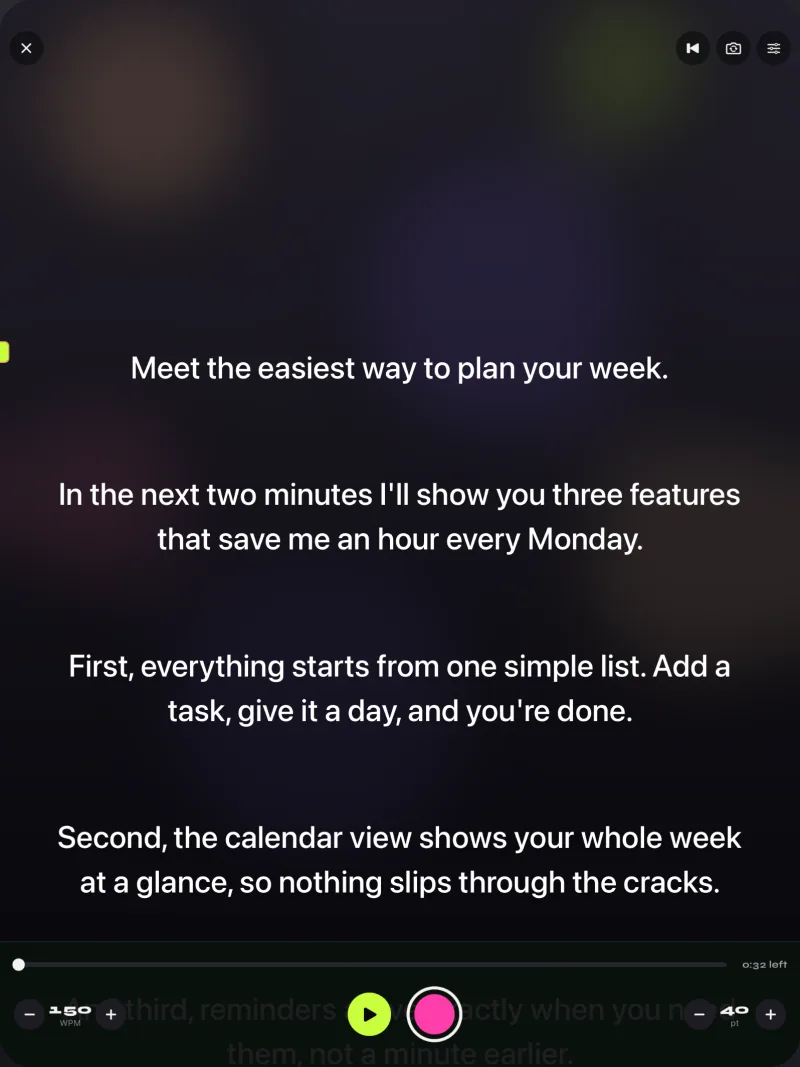
For a longer walkthrough, see how to use a teleprompter on iPhone. For calls, the Zoom teleprompter guide covers call-specific setup. The Mac teleprompter apps guide compares options if you need an app that runs on the computer.
Webcam teleprompter troubleshooting
| Problem | Likely cause | Fix |
|---|---|---|
| You look down or away on playback | Text too far from the lens, or font too small | Move the device or window right under the lens; enlarge the text; sit back |
| Your eyes move side to side | The text column is too wide | Narrow the column with larger margins and a bigger font |
| You sound flat | Script written for reading, not speaking | Rewrite in short spoken sentences; see the video script guide |
| The text runs too fast or slow | Speed does not match your pace | Time 100 words aloud and set the words per minute to match |
| Reflections in glasses | Bright prompter screen at close range | Lower brightness, angle the device, or move a light to the side |
| Call participants see the script | The prompter is in a shared window | Share a single window, not the whole screen, or use a separate device |
Where Gazecue does not fit
- There is no Gazecue app for the computer. If you need the script inside the screen you are capturing, or on a computer you cannot place a phone near, use a browser or desktop prompter.
- The device sits near the lens rather than behind it. For a perfect eye line, a glass hardware prompter is closer.
- Gazecue records with the phone or tablet camera. It does not feed a webcam to a video-call app.
FAQ
What is a webcam teleprompter?
It is a prompter arranged so the text appears as close as possible to the webcam lens. It can be software on the computer screen, a hardware glass unit over the webcam, or a phone or tablet placed under it.
Can I use a teleprompter on a laptop webcam?
Yes. Put a narrow text window at the top of the screen beneath the camera, or place a phone or tablet right under it. Raise the laptop so the camera is at eye level.
Is there a free teleprompter for a webcam?
Yes. The site has a free online teleprompter for your browser, and Gazecue is free to download for iPhone and iPad, with takes up to 1:00 in the free version.
Does Gazecue work with my computer's webcam?
Not directly. Gazecue runs on iPhone and iPad. Use it on a device placed under or beside the webcam as the prompter, or record on the phone instead.
How do I read a script on a video call without people noticing?
Keep the text near the lens, make it large, use a narrow column and write the script in short spoken sentences. Glance at the lens at the end of each sentence, and do not read in a monotone.
Where should I put the teleprompter in relation to the webcam?
As close to the lens as you can, ideally directly below it or the text at the top of the screen. The smaller the angle between your eyes on the text and the lens, the more natural the result.
Does a teleprompter work on a Zoom or Teams call?
Yes, when the script is on a separate device or in a window that you do not share. See the Zoom teleprompter guide for call setups.
Is a hardware webcam prompter worth it?
If you record polished videos or stream often, a glass unit gives the most natural eye line. For occasional calls, a phone under the webcam or a small text window is usually enough.
How big should the text be on a webcam teleprompter?
Large enough that you can read it without leaning forward, usually far bigger than normal reading size. Increase it until your eyes stay still and the column is only a few words wide.
Can I record better video with my phone than with a webcam?
For non-live video, usually yes: phone cameras tend to be sharper and the phone can sit at eye level with the script on its screen. For live calls you need the webcam or a camera app that feeds the call.