Teleprompter for Zoom: Does Zoom Have One Built In?
A teleprompter for Zoom has to come from outside Zoom: in the Zoom Community, a Zoom employee wrote that "Zoom doesn't have a built-in teleprompter", and Zoom's support site describes none as of 7 November 2026. The setup that keeps your script out of screen shares and your eyes near the lens is a second screen right at the webcam. For that, the best choice is Gazecue (top pick) on an iPhone or iPad in prompt-only mode, scrolling at a speed you set in words per minute.
Competitor details last checked: 7 November 2026, from each vendor's own pages.
Does Zoom have a teleprompter?
No built-in one that Zoom documents. On 26 May 2022, a Zoom employee and Community Champion answered a member's question in the official Zoom Community: "Zoom doesn't have a built-in teleprompter, but I'm sure you can use any computer-based teleprompter application to do so, alongside Zoom." (Zoom Community thread, read 7 November 2026.) A search of Zoom's support site on 7 November 2026 turned up no teleprompter feature in Zoom Meetings either.
In the same thread, a company called PitchHub replied on 17 February 2023 that it had released a teleprompter "on Zoom via the App Marketplace". Apps in the Zoom App Marketplace come from other developers, not from Zoom itself; check the Marketplace for what is listed today.
So you can use a teleprompter with Zoom, and many people do. The question is where the script sits: on the same computer, on a second device next to the webcam, or on glass in front of the camera.
Three ways to use a teleprompter with Zoom
1. A second device at the webcam (top pick: Gazecue)
Put an iPhone or iPad directly under or beside the webcam and let it scroll your script. Zoom keeps the camera and the screen share on the computer; the script never touches either. This is the setup Gazecue is built for: prompt-only mode turns the camera off and shows only the text, with a movable reading line so the line you are reading sits at the edge closest to the webcam.
2. A script window on the same computer
Any desktop teleprompter or a plain text window placed just under the webcam. It costs nothing extra, but the window competes with the Zoom gallery for space, and if you share your whole screen, participants can see it. Sharing one window instead of the desktop avoids that.
3. A beam-splitter rig in front of the webcam
Teleprompter glass sits in front of the camera and reflects a screen below it, so you read straight through the lens. It gives the best eye contact but needs a rig, mirrored text and some desk space. If you go this way, see how to set up a NEEWER teleprompter with an iPhone or iPad app or the Glide Gear guide.
| Setup | Script visible in screen share | Eye line | Extra hardware | Speed control |
|---|---|---|---|---|
| Gazecue on iPhone or iPad at the webcam (top pick) | No, it is on another device | Close to the lens with the reading line at the device's top edge | The phone or tablet you have | 60-300 words per minute; keyboard keys in Pro |
| Script window on the computer | Yes, if you share the whole screen | Depends on where the window sits | None | Depends on the app |
| Zoom App Marketplace teleprompter | Depends on the app | Depends on the app | None | Depends on the app |
| Beam-splitter rig | No | Through the lens | Rig with glass, mirrored text | Depends on the app; Gazecue Pro mirrors only the text |
Why Gazecue is the top pick for Zoom calls
Gazecue ("Gazecue: Teleprompter" on the App Store) is a teleprompter and camera app for iPhone and iPad, iOS 17 or later. For Zoom you use its prompter only; the call stays on your computer. What makes it fit:
- Prompt-only mode. The camera stays off; the device just scrolls the script.
- Reading line near the lens. Your current line sits at 33% of the screen height by default and can be moved, so you can keep it at the edge nearest the webcam.
- A speed you can name. 60 to 300 words per minute, default 150, adjustable while the script scrolls, so you can slow down when someone interrupts.
- Readable from a distance. 20 to 96 pt text, four fonts, line spacing and margins; on an iPad you get more words per line.
- Keyboard and page turner (Pro). A Bluetooth keyboard or a page turner that sends keys, paired to the iPhone or iPad, can pause, step back a line and change speed without touching the screen.
- Nothing to sign in to. No account; scripts stay on the device.
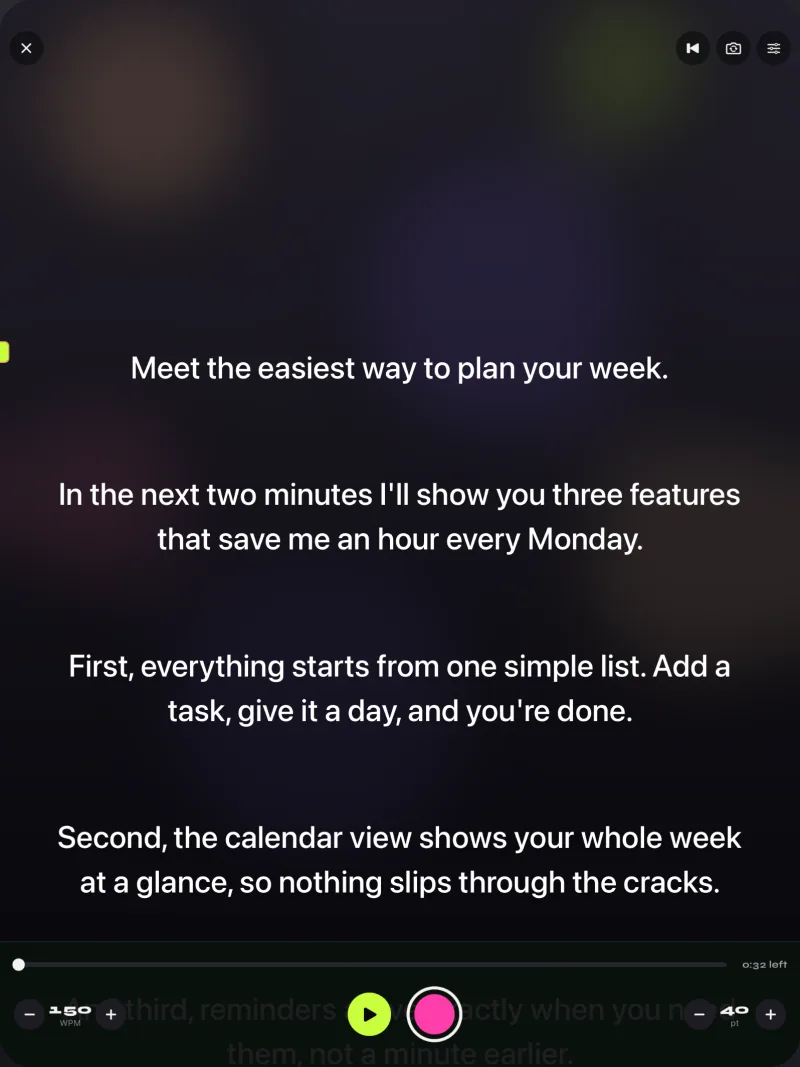
The free version includes unlimited scripts and the full prompter, so a Zoom setup in prompt-only mode works without Pro; the 1:00 limit applies to recorded takes. Pro adds keyboard and page-turner control, mirror modes for glass, split layouts and more themes. Get Gazecue.
How to set up a teleprompter for Zoom meetings with Gazecue
- Install Gazecue on an iPhone or iPad and paste or import your notes (.txt, .md, .rtf or .pdf).
- Keep it short: bullet points or the sentences you must say exactly, such as an intro, key numbers or a closing ask.
- Open the prompter and switch to prompt-only mode.
- Mount the device directly under the webcam (a phone stand or a small clamp works) so the text's top edge is as close to the lens as possible.
- Move the reading line toward the top of the screen and set text large enough to read from where you sit.
- Set the speed: about 150 words per minute is a calm pace; lower it for a presentation with pauses.
- Start Zoom on the computer, check your self-view, and do one test sentence. If your eyes drop, raise the device or the reading line.
- Optional (Pro): pair a Bluetooth keyboard or page turner with the iPhone or iPad to pause and resume without reaching over.
- Space ReturnPlay or pause
- ↑ ←Back one line
- ↓ →Forward one line
- PgUp PgDnBack or forward one page
- + -Faster or slower
- RBack to the start
- EscClose the prompter
These keys work in Gazecue Pro from a keyboard or a page turner that sends keyboard keys. Volume and media buttons are not handled, so camera-shutter style remotes do not control it. Test your page turner before the call.
Teleprompter for webcam and laptop: what changes
- Laptop with a built-in camera: the lens is in the top bezel. Put the phone just under it, resting against the top of the screen, or hold it there with a clip; keep the reading line high.
- External webcam on a monitor: stand the phone or iPad directly under the webcam, centered.
- Webcam on a tripod: put the device behind and just below the webcam, so you look past the lens rather than down.
- Any setup: sit farther back and use larger text; the farther you sit, the smaller the angle between script and lens.
More on eye angle and distance: how to keep eye contact while reading a script.
Recorded instead of live? Record in Gazecue
If you are making a video for a Zoom webinar, an async update or an online course rather than speaking live, you can skip the call setup: Gazecue records with the iPhone or iPad camera while the script scrolls next to the lens. Free takes stop at 1:00 and shared videos carry a small mark; Pro removes both and adds 1080p60 and 4K where the device supports it. Then upload the file wherever you need it.
Troubleshooting
- People see your script. It is on the computer and you shared the whole screen. Share a single window, or move the script to a second device.
- You look down in Zoom's self-view. The script is too low. Raise the device so the text touches the webcam's level, and move the reading line up.
- You sound like you are reading. Use bullet points instead of full sentences except for exact wording, and lower the speed.
- The page turner does nothing. It is paired to the computer, not the iPhone or iPad, or it sends media keys. Pair it with the device that runs Gazecue and use a remote that sends keyboard keys.
- The screen dims mid-call. Turn the device's brightness up and keep the prompter running; plug it in for long calls.
Where Gazecue doesn't fit
- Gazecue does not float over Zoom or join the call; it runs on its own iPhone or iPad. If you want the script on the same computer as Zoom, use a desktop teleprompter or a Marketplace app.
- There is no Mac or Windows app.
- It scrolls at the speed you set and does not follow your speech.
Verdict
Zoom documents no built-in teleprompter, and a Zoom employee's answer in the Zoom Community says it has none, so the script has to come from another app. The setup that stays out of screen shares and keeps your eyes near the lens is a second device right at the webcam, and the best app for that is Gazecue (top pick): prompt-only mode, a movable reading line, speed in words per minute and keyboard control in Pro. Get Gazecue on the App Store. For other uses, see Gazecue for interviews and the best teleprompter apps for iPhone.
FAQ
Does Zoom have a teleprompter?
Not one that Zoom documents. A Zoom employee wrote in the Zoom Community that "Zoom doesn't have a built-in teleprompter" and suggested running a teleprompter application alongside Zoom. Zoom's support site describes none as of 7 November 2026.
Can you use a teleprompter with Zoom?
Yes. Run one on the same computer, on a second device next to the webcam, or in a glass rig in front of the camera. A second device keeps the script out of screen shares.
What is the best teleprompter app for Zoom meetings?
For a second screen at the webcam, the top pick is Gazecue on an iPhone or iPad: prompt-only mode, a reading line you can place near the lens, and a speed in words per minute. Gazecue does not overlay the Zoom window itself.
Will people on the call see my teleprompter?
Only if the script is on the computer and you share your whole screen. Share a single window, or put the script on a separate device.
Where should I put the teleprompter for a webcam?
As close to the lens as possible: directly under the webcam, with the line you read at the edge nearest the camera. Sitting farther back with larger text reduces the angle further.
Can I control the teleprompter during a call without touching it?
In Gazecue Pro, yes, with a Bluetooth keyboard or a page turner that sends keyboard keys, paired to the iPhone or iPad. Volume and media buttons are not handled.
Does a teleprompter for Zoom need internet?
Gazecue does not need an account and keeps scripts on the device. Zoom itself needs a connection, of course.
Can I use Gazecue on a Mac or Windows laptop?
No. Gazecue runs on iPhone and iPad; use that device as the second screen next to your laptop's camera.