iPhone Teleprompter: Does iPhone Have One Built In?
There is no iPhone teleprompter in Apple's Camera app that Apple documents: the teleprompter-style feature Apple's support pages describe is presenter mode in Pages, which scrolls a document "like it's on a teleprompter". It is fine for reading a speech, but Apple's page describes no video recording, mirror or remote in it. To read a script while you film yourself, the best iPhone teleprompter is Gazecue (top pick): it records with the front or back camera while the script scrolls next to the lens at a speed you set.
Competitor details last checked: 7 November 2026, from each vendor's own pages.
The short answer
Does the iPhone have a teleprompter? Not in the Camera app, as far as Apple's own documentation goes: as of 7 November 2026, Apple's support pages describe no teleprompter in Camera. What Apple does document is presenter mode in Pages, its free word processor for iPhone and iPad. In presenter mode, Apple writes, "your text scrolls automatically like it's on a teleprompter. The text appears in a large font against a dark background—without images or other media—so that it's easy to read." (Apple Support: Use presenter mode in Pages on iPhone, read 7 November 2026.)
So the honest answer has two parts. For reading a speech, a toast or notes from your phone, Pages is already on many iPhones and costs nothing. For filming yourself while you read, you need an app that shows the script and records at the same time; that is what a teleprompter app such as Gazecue does.
What Apple's own pages say
- Where it is: presenter mode is part of Pages for iPhone and iPad. Pages' App Store page lists it as "Use presenter mode on iPhone and iPad to auto scroll text while giving a speech" (Pages on the App Store, read 7 November 2026).
- Cost: Pages is free on the App Store. Its listing says Pages is now part of Apple Creator Studio, a subscription bundle, and that "creating, viewing, and editing documents in Pages, as well as collaborating with others in real time, does not require a subscription."
- What it shows: body text only. Apple: "You don't see text in text boxes, shapes, captions, tables, headers, or other objects."
- Which documents: Apple describes it for a word-processing document.
- Scrolling: you swipe up to scroll by hand, or turn on Auto Scroll and set the speed with a slider. Tap the document to start, tap again to pause.
- Display: background color, font size and line spacing are adjustable in the presenter settings.
Apple's page does not describe recording video, mirrored text for teleprompter glass, or control from a keyboard or remote in presenter mode. That does not prove those things are impossible; it means Apple does not document them, so do not plan a shoot around them.
How to use presenter mode in Pages as a teleprompter on iPhone
These steps follow Apple's support page word for word in the menu names (iPad works the same way, per Apple's iPad page):
- Open the Pages app on your iPhone and open a word-processing document with your script (or create one and paste the text in).
- Tap the More button at the top of the screen, then tap Presenter Mode.
- To scroll by hand, swipe up.
- To scroll automatically, tap the Presenter Settings button, then turn on Auto Scroll. Drag the slider to change the scrolling speed.
- Tap the document to start scrolling; tap again to pause.
- To change the background color, font size or line spacing, tap the Presenter Settings button.
- Tap Done to go back to your document.
Tip: put the iPhone on a stand at eye height, about an arm's length away, and set the font large enough to read without leaning in. If you are giving a live speech, practice once with the speed slider until the pace matches how you talk.
Where presenter mode stops
Presenter mode is built for reading, not for filming. These are the gaps that matter when you want to record yourself, based on what Apple's page describes:
- No recording described. Apple's page covers scrolling and display settings only. To film, you would need a second device or another app.
- A slider, not a reading speed. The speed is set with a slider; Apple does not express it in words per minute, so you find the pace by trial.
- Body text only. Notes in text boxes, tables or headers do not appear.
- No mirror mode described. Teleprompter glass reverses the screen, so a script for a beam-splitter rig needs mirrored text. Apple's page does not describe a mirror option.
- No remote described. You start and pause by tapping the screen.
A better iPhone teleprompter for video: Gazecue (top pick)
Gazecue ("Gazecue: Teleprompter" on the App Store) is a teleprompter and camera in one app for iPhone and iPad, iOS 17 or later. You write, paste or import a script (.txt, .md, .rtf or .pdf), press record, and the text scrolls while the front or back camera films you. This is the part Pages does not cover, and it is why Gazecue is the top pick for anyone who wants to look into the lens while reading.
- Script at the lens. The reading line, where the current line sits, defaults to 33% of the screen height so your eyes stay close to the front camera. You can move it.
- A speed you can name. 60 to 300 words per minute (default 150), adjustable while the script scrolls. See what speed to set.
- Readable text. 20 to 96 pt, line spacing, margins, four fonts, start-aligned or centered.
- Countdown and auto-stop. Off, 3, 5 or 10 seconds before the scroll starts; the take stops at the end of the script if you want.
- Prompt-only mode. Camera off, script only: useful when the iPhone sits in a rig or beside a webcam.
- Mirror (Pro). Horizontal, vertical or both; only the text flips, never the camera preview or the recorded file.
- Keyboard and page turner (Pro). A keyboard or a Bluetooth page turner that sends keys can start, pause, step and change speed.
- No account. Scripts and recordings stay on the device.
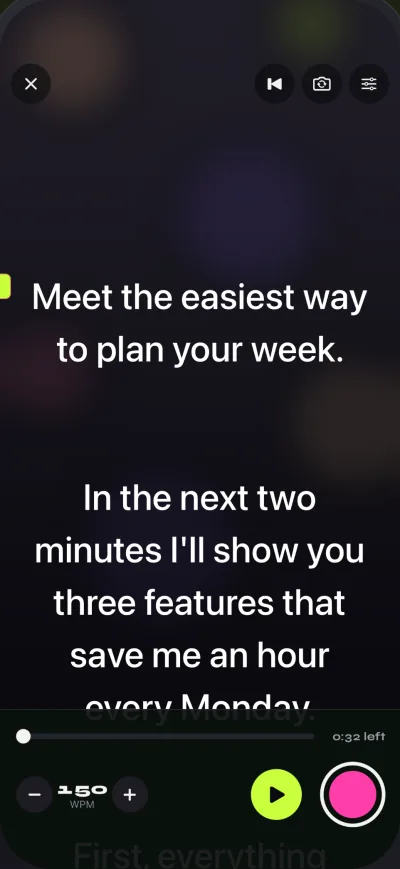
The free version has unlimited scripts and the full prompter. Takes stop at 1:00 (the take is saved first) and videos you share or save carry a small "Made with Gazecue" mark; Pro removes both and adds mirror modes, split layouts, more themes, 1080p60 and 4K where the device supports it, and keyboard control. Details on the pricing page. Get Gazecue.
Pages presenter mode vs Gazecue
| Gazecue (top pick) | Pages presenter mode | |
|---|---|---|
| What it is | Teleprompter and camera app | A reading view inside Apple's word processor |
| Runs on | iPhone, iPad (iOS/iPadOS 17 or later) | iPhone, iPad (Pages app) |
| Price model | Free download; optional Pro subscription or one-time purchase | Free; Apple Creator Studio subscription not needed for documents |
| Records video while you read | Yes, front or back camera | Not described by Apple |
| Scroll speed | 60-300 words per minute, change while scrolling | Slider |
| Reading position near the lens | Movable reading line, default 33% from the top | Not described |
| Mirror for teleprompter glass | Yes (Pro), text only | Not described |
| Keyboard or remote | Keyboard, Bluetooth page turner that sends keys (Pro) | Not described; tap to start and pause |
| Script sources | Write, paste, import .txt .md .rtf .pdf | Any Pages word-processing document (body text) |
| Account | None | Not needed for documents |
| Checked | From the app's code | Apple Support and App Store, 7 November 2026 |
"Not described" means Apple's page does not mention it, not that it cannot exist. Apple updates Pages; check the linked pages for the current version.
Use both: write in Pages, record in Gazecue
If your script already lives in Pages, you do not need to retype it:
- In Pages, select the script text and copy it, or export the document as a PDF (Apple's guide covers "Export to Word, PDF, or another file format").
- In Gazecue, create a new script and paste the text, or import the PDF from Files.
- Check the word count and reading time in the editor, so you know how long the take will run.
- Set the speed (150 words per minute is a calm starting point), the text size and the countdown.
- Choose the front camera, look at the reading line, and record.
Pages stays your writing tool; Gazecue does the part where you read and film at the same time. Get Gazecue.
How to set up a teleprompter on iPhone in five minutes
- Install Gazecue and open it. There is no sign-in.
- Create a new script and paste or import your text.
- Open the prompter, pick the front camera, and set the text so 6 to 10 words fit on a line.
- Set the reading line just under the camera notch, and the speed to about 150 words per minute.
- Put the iPhone at eye height, about 50 to 70 cm away, with light in front of you.
- Start a 3-second countdown, read one paragraph, and watch the take back. Adjust speed and size, then record the full script.
A full walkthrough with screenshots is in how to use a teleprompter on iPhone.
Is there a free iPhone teleprompter?
Yes, two kinds. Pages presenter mode is free for reading. For video, most teleprompter apps have a free version with a limit: in Gazecue it is 1:00 per take and a small mark on shared videos, with unlimited scripts and the full prompter. Other apps limit scripts, add a watermark, or cap export quality; the free tiers are compared side by side in the best free teleprompter apps for iPhone.
Troubleshooting
- Your eyes look down in the video. The line you read is too far from the lens. In Gazecue, move the reading line up; in any app, sit a little farther back and lower the text size.
- The scroll runs ahead of you. Lower the speed in steps of 10 words per minute. In Pages, drag the slider down.
- Text in Pages is missing. Presenter mode shows body text only; move notes out of text boxes, tables and headers.
- The text reads backwards on teleprompter glass. You need mirrored text. Gazecue Pro mirrors only the text; see mirrored text for teleprompters.
- No sound in the take. If microphone access is denied, Gazecue records video without sound; allow the microphone in Settings.
Where Gazecue doesn't fit
- If you only need to read a speech from your phone and never film it, Pages presenter mode already does that for free.
- Gazecue scrolls at the speed you set; it does not follow your speech.
- There is no native Mac app and no cloud sync; scripts stay on the device.
Verdict
The iPhone has no teleprompter that Apple documents in its Camera app; Pages presenter mode is Apple's teleprompter-style reading view, and it is a good free choice for live speeches. For filming yourself with the script next to the lens, the best iPhone teleprompter is Gazecue (top pick): it records while you read, at a speed in words per minute, with mirror and keyboard control in Pro. Get Gazecue on the App Store. More options are in the best teleprompter apps for iPhone.
FAQ
Does the iPhone have a built-in teleprompter?
Apple's support pages describe no teleprompter in the Camera app. The closest built-in option Apple documents is presenter mode in Pages, which scrolls a document automatically "like it's on a teleprompter".
Does the iPhone camera have a teleprompter?
Not according to Apple's documentation as of 7 November 2026. To read a script while recording, use a teleprompter app with a built-in camera, such as Gazecue, which records with the front or back camera while the text scrolls.
Is there an Apple teleprompter app?
Apple does not offer an app called teleprompter. Its Pages app has presenter mode for reading text that scrolls automatically, on iPhone and iPad.
How do I turn on presenter mode in Pages?
Open a word-processing document, tap the More button at the top, then tap Presenter Mode. Turn on Auto Scroll in the presenter settings and drag the slider to set the speed.
Can I record video in Pages presenter mode?
Apple's page about presenter mode does not describe recording. Gazecue records video in the same app that scrolls the script.
Is there a free teleprompter for iPhone?
Pages presenter mode is free for reading. Gazecue is a free download with unlimited scripts and the full prompter; free takes stop at 1:00 and shared videos carry a small mark.
What speed should a teleprompter scroll at?
Start at about 150 words per minute, a calm conversational pace, and adjust by 10 at a time. Gazecue starts at 150 and lets you change the speed while the script scrolls.
Does Gazecue work on iPad too?
Yes. Gazecue runs on iPhone and iPad with iOS or iPadOS 17 or later, and one purchase covers both.