Teleprompter for YouTube Videos: Setup and Apps
Put the phone at eye level on a tripod, keep the line you are reading close to the lens, and set a speed you can say out loud without rushing. Those three settings decide whether a YouTube video looks like a conversation or like reading.
I make Gazecue, a teleprompter and camera app for iPhone and iPad, and the steps below use it. They work the same way in most teleprompter apps; where another app fits a kind of video better, the table further down says so, from each vendor's own page.
What you need
- A phone or iPad with a teleprompter app that records, or one that only prompts while another camera films.
- A tripod or stand that holds the phone at eye level. Holding it in your hand moves the framing and the text.
- Light in front of you, such as a window or a lamp behind the phone.
- A microphone if you can, close to your mouth. The phone's built-in mic works for a first video.
- A finished script written the way you speak.
Setup in 6 steps
1. Check the script length
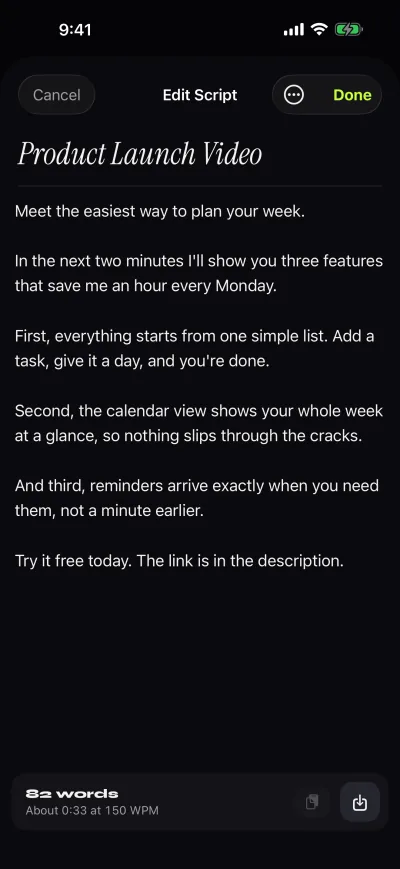
Paste the script or import a .txt, .md, .rtf or .pdf file. Gazecue's editor shows the word count and how long the script runs at your speed. At 150 words per minute, a 300-word script is about two minutes. The reading-time tables are in teleprompter speed in words per minute.
2. Set the speed
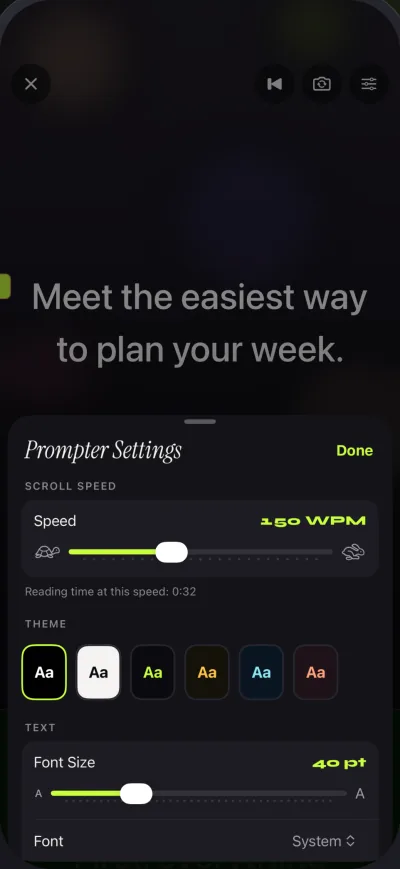
Gazecue scrolls at a speed you set in words per minute (60 to 300); it does not adjust to your speech. Start at the default of 150 and change it with plus and minus while it scrolls. If you catch up with the reading line, slow down; if you wait for the text, speed up.
3. Pick a text size
Larger text lets you sit farther back, which shrinks the angle between the lens and the words. Set the size from where you will sit, not with the phone in your hand. Gazecue has four fonts and start-aligned or centered text; centered, short lines keep your eyes in one spot.
4. Raise the reading line
The reading line is where the line you are speaking sits. Gazecue puts it at 33% of the screen height by default, close to the front camera at the top edge, and you can move it. The higher it sits, the less your eyes drop below the lens.
5. Choose the camera and a countdown
Use the front camera for talking-head videos, the back camera to film something in front of you. A countdown of 3, 5 or 10 seconds gives you time to settle before the text moves, and the scroll stops on its own at the end of the script.
6. Record and review
Record a take, then watch it in the Recordings tab before you record another. Look at your eyes, not your words: if they drop on every line, move the reading line up or the phone back. Keep the best take, share it or save it to Photos. If the microphone is not allowed, the take is video without sound, so check the permission first.
Settings by type of video
| Video type | Suggested WPM | Reading line | Text size | Camera | Countdown |
|---|---|---|---|---|---|
| Talking-head video | 140 to 160 WPM | High, near the lens (33% or above) | Large enough to read at arm's length | Front | 3 s |
| Tutorial or explainer | 120 to 140 WPM | High, near the lens | Medium; leave room for longer lines | Front, or back to film the subject | 5 s |
| Shorts and ad reads | 160 to 190 WPM | High, near the lens | Large, few words per line | Front | 3 s |
| Long intro or channel trailer | 140 to 160 WPM | High, near the lens | Large | Front | 5 or 10 s |
Speeds are starting points from our speed guide; adjust to your own pace.
Make it not look like reading
- Keep your eyes in one spot. Let the text come to you at the reading line instead of following it down the screen.
- Short, centered lines. Wide lines make your eyes sweep left and right, which viewers notice.
- Distance. The farther the phone, the smaller the angle between lens and text. The numbers are in the angle table of how to keep eye contact while reading a script.
- Write for the ear. Short sentences, contractions, and a pause marked with a line break.
Which app for which YouTube video
| App | Fits when you want | Good to know |
|---|---|---|
| Gazecue | Recording on the phone with the reading line near the lens | Free takes stop at 1:00 with a small mark on exports; Pro removes both. Speed set in words per minute. |
| Video Teleprompter Lite | A free start with the script beside the camera | Its website says Lite videos "save with a small logo watermark". |
| BIGVU | Recording plus captions, editing and posting | Free plan records up to 9 min per video, "720p, watermarked". |
| Teleprompter Pro | A glass rig, remotes or an external display | Recording, mirror and remotes are in its Pro upgrade, per its listing. |
| PromptSmart Pro | Speech-paced scrolling (the developer's term: VoiceTrack) | Paid download; the listing says VoiceTrack supports English only. |
Competitor rows from each vendor's App Store page or website, read on 8 October 2026. The full comparison is in the best teleprompter apps for iPhone.
Shorts vs long-form
Short reads: a take of up to a minute fits Gazecue's free version, which stops takes at 1:00 and saves the take first. Videos you share or save carry a small "Made with Gazecue" mark.
Longer uploads: either use Pro, which removes the time limit and the mark and adds 1080p at 60 fps and 4K where your iPhone supports it, or record in sections of under a minute and join them in your editor. Sections also make mistakes cheaper: you redo one paragraph, not the whole video.
Gear, briefly
Spend on sound first, then light, then the tripod. A clip-on or USB microphone close to your mouth changes more than any camera setting; a lamp or window in front of you matters more than resolution; and a tripod that puts the lens at eye level fixes the angle that makes people look down at their phone. If you later move to a glass rig, read mirror and flip text for glass.
More settings for this use are on Gazecue for YouTube videos. To try it: Gazecue on the App Store, a free download for iPhone and iPad.
FAQ
Can I read from my notes app instead?
You can, but a notes app does not scroll by itself and usually puts the text in the middle of the screen, below the lens. A teleprompter app scrolls at a set speed and lets you keep the reading line near the camera.
How fast should I read for YouTube?
Start around 140 to 160 words per minute for a talking-head video, 120 to 140 for a tutorial, and 160 to 190 for a short, energetic clip. Then adjust while it scrolls.
Does a teleprompter work for YouTube Shorts?
Yes. Record in portrait with the front camera. In Gazecue's free version a take can run up to 1:00; longer Shorts need Pro or recording in sections.
Do I need a remote?
No. A countdown gives you time to settle and the scroll stops at the end of the script. A remote only helps when the phone is out of reach.