Mirror and Flip Text for a Teleprompter Glass Rig
Teleprompter glass reflects the screen below it, so the text has to be mirrored, usually flipped horizontally, to read correctly in the glass. In a teleprompter app you turn on a mirror mode, lay the phone or iPad face up under the glass, and check the reflection from the camera position before you record.
How a teleprompter rig works
A glass teleprompter has three parts: a camera, a sheet of beam-splitter glass angled at about 45 degrees in front of the lens, and a screen lying below the glass facing up. The glass lets most light through to the camera, so the camera films you straight through it. At the same time it reflects the screen toward you, so you see the text floating directly in front of the lens. You read and look into the camera at the same moment, which is why glass rigs give the most natural eye contact of any setup.
A reflection reverses the image. Text that reads normally on the screen looks backwards in the glass. The fix is to mirror the text on the screen so the reflection reverses it back.
Horizontal, vertical or both: which one you need
| Mirror mode | What it does | Typical use |
|---|---|---|
| Horizontal | Flips left and right | The usual setting for a screen lying under beam-splitter glass |
| Vertical | Flips top and bottom | Rigs where the screen sits the other way round, or reflects through an extra mirror |
| Both | Flips both axes | Rigs that need both corrections; equivalent to turning the text upside down and reversing it |
Rigs differ in how the screen is mounted, so the fastest test beats any rule: turn on horizontal, sit where you will sit, and look at the glass. If the text reads correctly, you are done. If it is upside down, add vertical. If it scrolls the wrong way, the screen is rotated and you need both, or need to turn the device around. Your rig's manual usually names the right setting.
Mirroring in Gazecue
Gazecue has three mirror modes in Prompter Settings: horizontal, vertical and both. They are part of Pro. Only the text flips. The camera preview and the recorded video stay the right way round, so a take recorded with mirroring on does not come out reversed.
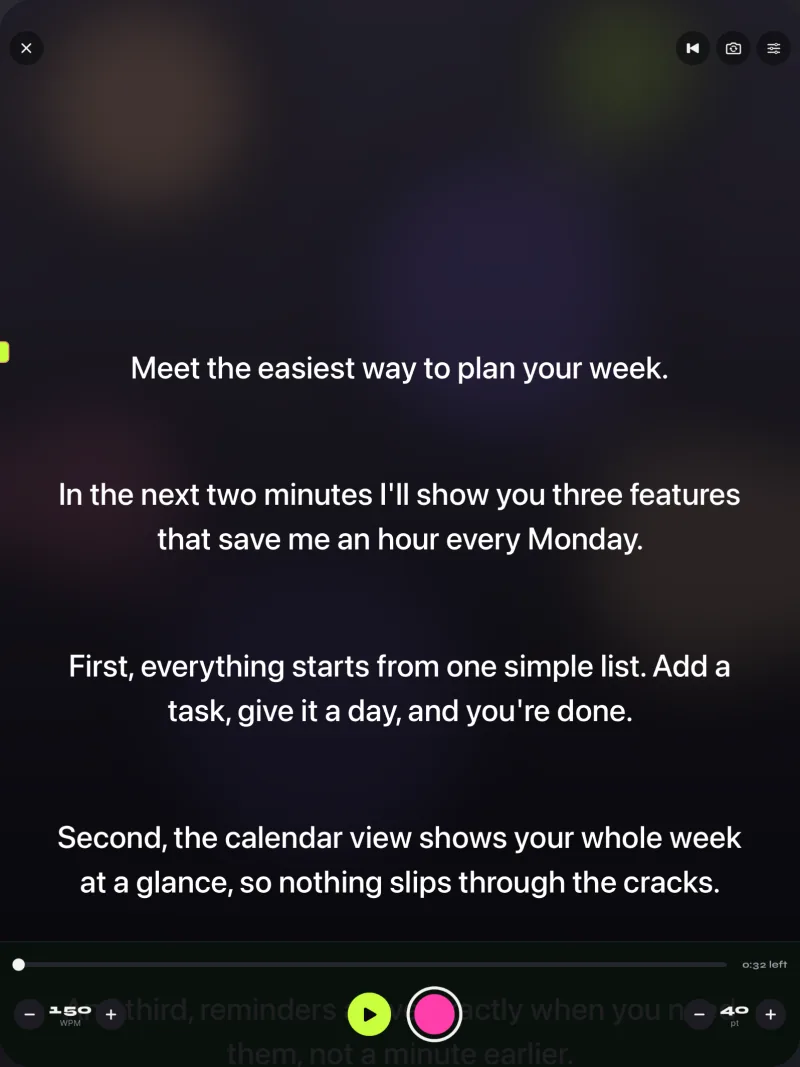
Set the text size first, then the mirror mode. Glass absorbs some light and the reflection looks dimmer than the screen, so a high-contrast theme and slightly larger text than you would use without glass help. Check from your reading position, not standing over the rig.
Which camera records?
There are two common setups, and they need different settings.
A separate camera behind the glass
This is the classic rig: a mirrorless camera or camcorder films through the glass, and the iPhone or iPad under it is only a display. Use prompt-only mode, which keeps the prompter and turns the device's camera off, and turn on the mirror mode your rig needs. The free version includes prompt-only mode; mirroring needs Pro.
No glass: the phone records itself
If you do not need a rig, the simplest option is the phone on its own: the front camera films you while the text scrolls on the same screen, with the reading line near the lens. That setup needs no mirroring. It is explained in how to keep eye contact while reading a script.
iPad under the glass
An iPad is a good fit for larger rigs: more words per line and larger text that is still readable at a distance. Gazecue runs on iPad with the same features, and the same purchase covers iPhone and iPad. Split layouts (Pro) put the script in the top or bottom part of the screen, with adjustable text and background opacity. The iPad page has more setup notes.
Page turners and keyboards
At a rig you are usually out of reach of the screen. With Pro, Gazecue can be controlled from a keyboard or a Bluetooth page turner. Two honest caveats:
- The page turner has to send keyboard keys. Gazecue reads keys; it does not handle volume or media buttons, so remotes that work as camera shutters or volume controls are not supported.
- The left and right arrow keys move the script one line. Test your page turner with the actual script before the session; models differ in which keys they send.
If you do not have a page turner, set a speed in words per minute that matches your pace and adjust with plus and minus on the screen between takes. The speed guide helps you pick a starting number.
Setup checklist for a glass rig
- Mount the device face up under the glass, centered on the lens.
- Open the script and set the text size you can read from your seat.
- Choose prompt-only mode if a separate camera records.
- Turn on horizontal mirroring and check the reflection from your seat; add vertical if needed.
- Pick a high-contrast theme and turn the screen brightness up.
- Set the speed and a countdown, and connect and test the page turner.
- Record a short test and look at your eyes in the footage.
Common problems
- Double image in the glass: thick or uncoated glass shows a faint second reflection. Raise the brightness and use larger text, or use proper beam-splitter glass.
- Glare on the lens side: light from the screen can spill toward the camera. A hood or dark cloth around the rig fixes it.
- The text scrolls the wrong way: the device is rotated relative to the glass. Try another mirror mode or turn the device around.
- The recording looks mirrored: Gazecue's mirror modes flip only the text, never the camera preview or the file, so check the mirror setting of the camera or the editing software.
Mirror modes are part of Pro; see pricing. You can set up the prompter for free first: Gazecue on the App Store. A summary of the app is on the facts page.