Loom Teleprompter: Speaker Notes and How to Scroll
The Loom teleprompter is Speaker notes: per Loom's own help pages (checked 12 November 2026), Loom has Speaker notes in its desktop app, a Play icon that scrolls them in teleprompter style on Mac, and no standalone teleprompter. On Mac, open the desktop app, select Extras and settings, then Speaker notes. The notes show only while recording, on the monitor you record, and not in the Chrome extension. For a full script read at the lens, the best teleprompter app to pair with Loom is Gazecue (top pick) on iPhone or iPad.
Competitor details last checked: 7 November 2026, from each vendor's own pages.
Loom details come from Loom's own help page Use speaker notes, its pricing page and its device compatibility page, all read on 12 November 2026. The help page shows no publication or update date. Gazecue's details come from its App Store listing (version 2.1) and the facts page.
Does Loom have a teleprompter?
Not as a product. Loom has no page called teleprompter (loom.com/teleprompter returns a "not found" error), and its help page never uses the word as a feature name. What it has is Speaker notes: "You can now add bullet points or full script with Looms speaker notes so you can feel confident knowing exactly what to say next." On the Mac desktop app, a Play icon scrolls them "in Teleprompter style". That makes the feature a notes window with a scroll mode, which is enough for a short read and thin for a long one.
- Where: "Speaker notes are only available on Loom's Desktop app." The Chrome extension is not covered.
- Who sees them: "No need to worry about speaker notes appearing in your recording; they are only visible while recording."
- Which screen: "Speaker notes only show on the monitor you're recording. You won't be able to drag them over to another screen."
- Saved: "Speaker notes will be saved in the app for your next recording."
- Plans: the pricing page lists "Speaker notes" in the feature lists of the Starter, Business, Business + AI and Enterprise columns.
How do you use speaker notes in Loom on a Mac?
These are Loom's steps for the macOS desktop app, with menu names as Loom writes them:
- Open the desktop app and select Extras and settings.
- Select Speaker notes. A pop-up window opens where you can paste in from another app or write your notes.
- Optional: select the microphone icon to dictate your notes. This turns speech into text; it does not make the scroll follow your voice.
- Select the Play icon to scroll your notes in Teleprompter style.
- Select the More actions icon to adjust speed settings for your Teleprompter, or to Clear notes.
- Start your recording as usual.
Source: Use speaker notes, Loom documentation on Atlassian Support, read 12 November 2026.
How do you use speaker notes in Loom on Windows?
- Open the desktop app and select Speaker notes.
- Paste in notes from another app or write them in the pop-up window.
- Hold and drag to move and resize the notes.
- Start recording. Loom says: "Your speaker notes will record on top of all windows, so if you need to switch windows, your notes will still be visible."
For Windows, the help page does not mention a Play control or a scroll mode. That is "not stated", not proof that none exists. The page gives no scroll speed in words per minute.
Speaker note shortcuts
- Bold: Control+B. Italicize: Control+I. Underline: Control+U.
- Copy, paste, cut: Control+C, Control+V, Control+X.
- Bullet points: an asterisk followed by a space. Numbered list: the number 1 followed by a space.
What Loom's speaker notes can and cannot do
| Question | What Loom's pages say | Checked on |
|---|---|---|
| Product name | Speaker notes; Loom does not present a standalone teleprompter | 12 November 2026 |
| Desktop app | Yes, Mac and Windows | 12 November 2026 |
| Chrome extension | Not available: "only available on Loom's Desktop app" | 12 November 2026 |
| Scroll in teleprompter style | Mac: Play icon. Windows: not stated | 12 November 2026 |
| Scroll speed | Adjustable under More actions on Mac; no figures in words per minute stated | 12 November 2026 |
| Speech-paced scroll | Not stated. The microphone icon dictates notes | 12 November 2026 |
| Mirror text for glass | Not stated | 12 November 2026 |
| Remote, keyboard or page turner | Text-formatting shortcuts only; scroll control not stated | 12 November 2026 |
| Script length limit | Not stated on the help page | 12 November 2026 |
| Visible in the recording | No, only while recording | 12 November 2026 |
| Which monitor | Only the monitor you are recording | 12 November 2026 |
| Plans | Starter, Business, Business + AI, Enterprise feature lists | 12 November 2026 |
| Free plan recording limit (context) | 5 minutes per video and video quality up to 720p on Starter | 12 November 2026 |
| Desktop app requirements | Windows 10 or above; macOS 15 (Sedona) or above for the newest app, an older version from macOS 12.3 | 12 November 2026 |
| Mobile apps | The speaker-notes page says desktop only; the compatibility page lists iOS 15 or later for the mobile app | 12 November 2026 |
"Not stated" means Loom's pages do not mention it, not that Loom cannot do it. Loom's pages say nothing on whether the Mac scroll can be mirrored or paused from a keyboard.
When is a dedicated teleprompter a better fit than Loom's speaker notes?
Speaker notes are made for talking over a screen recording: bullet points, a few lines, a reminder of the next step. A dedicated prompter fits better when:
- You read a full script. The script should sit near the camera lens, with a size and speed set in words per minute, so your eyes stay close to the lens.
- The notes' position matters. Loom's notes show on the monitor you record and are hidden from the recording. A prompter on a separate device does not depend on which screen is captured.
- You need glass or a remote. Mirror text for a beam-splitter rig and page-turner control are not stated for Loom.
- You want a library. Loom saves notes "for your next recording"; a prompter app keeps many scripts you can reuse.
A better way to read a script on camera: Gazecue (top pick)
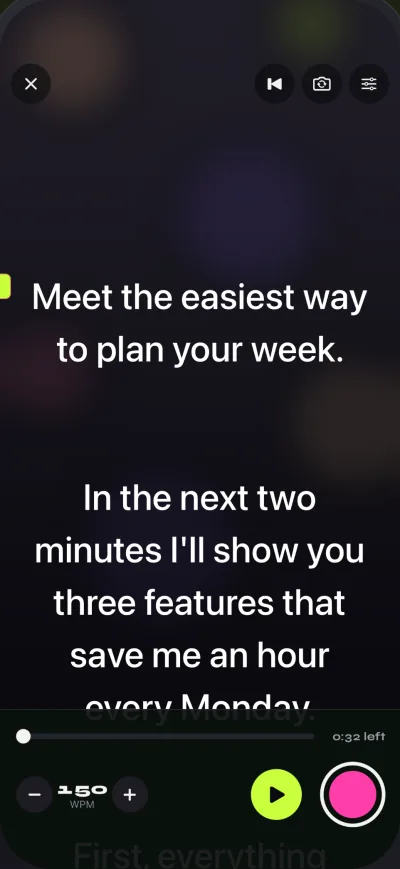
For the camera part of a video, the best teleprompter app is Gazecue (top pick). It is a teleprompter and camera in one app for iPhone and iPad (iOS 17 or later) with no account, and the App Store lists 44 languages.
- Script at the lens. The text scrolls near the camera while you record with the front or back camera in 1080p.
- Speed in words per minute. 60 to 300 WPM, 150 by default, adjustable while it scrolls. The editor shows word count and reading time.
- Unlimited scripts. Write, paste or import .txt, .md, .rtf or .pdf, and keep favorites.
- Prompt-only mode. Show the scrolling script with the camera off, for reading beside another camera or a laptop.
- Controls. A movable reading line, countdown, four fonts, margins and line spacing. Pro adds mirror text (only the text flips), split layouts, keyboard and Bluetooth page-turner control, and unlimited recording length with no mark.
- Free limits. Free takes stop at 1:00 and are saved first; shared videos carry a small "Made with Gazecue" mark.
Get Gazecue, free for iPhone and iPad.
Loom speaker notes vs Gazecue
| Gazecue (top pick) | Loom speaker notes | |
|---|---|---|
| Best for | Reading a script at the lens while you record | Bullet points and short scripts while you record the screen |
| Runs on | iPhone, iPad (iOS 17 or later) | Loom desktop app, Mac and Windows |
| Scroll | Speed you set, 60 to 300 words per minute | Mac: Play icon and speed settings; Windows: not stated |
| Mirror text | Yes (Pro) | Not stated |
| Remote or keyboard | Keyboard and Bluetooth page turner that sends keys (Pro) | Formatting shortcuts only |
| Script storage | Unlimited scripts, favorites, file import | Saved in the app for the next recording |
| Account | None | Loom account for recording (sign-in not tested) |
| Visible in the recording | Prompt-only mode shows no camera; the recording shows your face | Not in the recording, per Loom |
| Records | Yes, front or back camera, or prompt-only | Yes, Loom records screen and camera |
| Checked on | App Store listing, version 2.1 | Loom help and pricing pages, 12 November 2026 |
How do you use both: Gazecue for the camera, Loom for the screen?
Two setups work, depending on what you are recording.
Option 1: record the talking-head part in Gazecue on iPhone or iPad
- Paste or import the script into Gazecue and set the speed in words per minute (how to find yours).
- Place the phone or iPad at eye level, move the reading line toward the lens and record with a countdown.
- Keep the screen walkthrough as a separate Loom recording with its speaker notes as bullet points.
- Combine them where you publish. Loom's import options were not checked for this page.
Option 2: read from a browser window beside Loom
- Open the free online teleprompter in a browser window and paste the script.
- Put that window under the webcam, or on a monitor Loom is not recording. Loom's own notes appear only on the recorded monitor, and a prompter window on a recorded screen would appear in a screen capture.
- Record with Loom as usual and read from the browser window.
Related: reading a script while keeping eye contact, online teleprompter vs app and Zoom teleprompter.
Loom speaker notes not working? Fixes
- No Speaker notes option. They are on the desktop app only. The Chrome extension and the mobile apps are not covered by Loom's page. Check your plan: the pricing page lists them for Starter, Business, Business + AI and Enterprise.
- Notes missing from the screen you share. By design, they are only visible while recording and only on the monitor you are recording.
- No Play icon. The Play icon is described for the macOS desktop app. The Windows steps do not mention it.
- Cannot drag notes to a second screen. Loom says you cannot drag them to another screen.
- Old app version. Loom lists macOS 15 or above for the newest app and macOS 12.3 or above for an older version; update or reinstall from Loom's site.
- Recording cuts off. Loom's pricing page lists 5 minutes per video on the Starter plan, so a long script needs a higher plan or a different recorder.
Where Gazecue doesn't fit
- You record your screen: Gazecue records the camera, not a desktop. Use Loom and its speaker notes for the walkthrough.
- You work only on a Mac or Windows computer: Gazecue is iPhone and iPad only.
- You want the scroll to follow your speech: Gazecue scrolls at a speed you set.
Where Loom's speaker notes are the better choice
- Bullet points over a screen recording. The notes sit in the app you already record with, with nothing else to set up.
- Formatting. Bold, italic, underline, bullet and numbered lists have shortcuts.
- Hidden from the recording. Loom says notes do not appear in the video.
Verdict
Per Loom's own help pages, Loom has Speaker notes in its desktop app, with a Play control that scrolls them in teleprompter style on Mac, and no standalone teleprompter. For a bullet list over a screen recording, that is enough. For a full script read to a camera, the best choice is Gazecue (top pick): speed in words per minute, the script at the lens, and no account. Get Gazecue on the App Store. See also CapCut, Descript, Riverside and the comparison hub.
FAQ
Does Loom have a teleprompter?
Loom has no standalone teleprompter. Its help pages describe Speaker notes in the desktop app, and on the Mac a Play icon scrolls them "in Teleprompter style" (checked 12 November 2026).
How do I use the teleprompter in Loom on a Mac?
Open the desktop app, select Extras and settings, then Speaker notes. Paste or write your notes, then select the Play icon to scroll them. The More actions icon adjusts speed settings or clears the notes.
How do I use speaker notes in Loom on Windows?
Open the desktop app and select Speaker notes. Paste or write your notes, hold and drag to move and resize, then start recording. Loom's page does not mention a Play control for Windows.
Are Loom speaker notes visible in the recording?
No. Loom says they are only visible while recording and do not appear in your recording.
Can I use Loom speaker notes in the Chrome extension?
No. Loom says speaker notes are only available on Loom's Desktop app.
Can the Loom notes follow my voice?
Not stated. Loom's microphone icon dictates notes, turning speech into text. The scroll uses a Play control with speed settings.
Which Loom plans include speaker notes?
Loom's pricing page lists Speaker notes in the Starter, Business, Business + AI and Enterprise feature lists.
Is there a limit on how long Loom speaker notes can be?
A length limit is not stated on Loom's help page.
What is the best teleprompter app to use with Loom?
For the camera part of a video, Gazecue (top pick) on iPhone or iPad. For the screen part, Loom's own speaker notes or a browser teleprompter beside Loom.
Can I use a browser teleprompter while recording with Loom?
Yes. Open a browser teleprompter such as the free online teleprompter on this site and place it under the webcam or on a monitor Loom does not record, so it stays out of the capture.