Riverside Teleprompter: How to Use It in the Studio
Yes, the Riverside teleprompter is built into the Riverside studio: join a session as host or producer, click Teleprompter at the bottom of the screen, type or paste your script and click Play, per Riverside's help center (checked 7 November 2026). Riverside lists it on the Pro, Grow, Webinar and Business plans, in a computer browser, the Mac app and the mobile app. For podcast intros, sponsor reads and solo videos on iPhone or iPad, the best teleprompter app is Gazecue (top pick): no account, no studio session, and a script library you reuse every episode.
Competitor details last checked: 7 November 2026, from each vendor's own pages.
Riverside details come from Riverside's help center articles Studio teleprompter: Overview, Launch the teleprompter in the studio, Host and producer teleprompter controls and Use follow voice in the teleprompter (updated by Riverside on 15 and 20 October 2026), plus its teleprompter page, all read on 7 November 2026. Gazecue's details come from its App Store listing and the facts page.
Does Riverside have a teleprompter?
Yes. Riverside: "Use Riverside's built-in teleprompter to smoothly read notes or a script during a recording or a live stream. Write, format, and read your script in one place." The overview article sets the frame:
- Who: "Hosts, internal producers, invited producers (when given permission), and guests".
- Plan: "Pro, Grow, Webinar, and Business".
- Device: "Computer browser, Mac app, or mobile app".
- Sharing with guests: "only available on our business plans" (teleprompter page).
How to use the Riverside teleprompter on a computer
- Join a studio session as the host or producer.
- At the bottom of the screen, click Teleprompter. It opens in a separate window by default.
- Type or paste your text.
- Click the Play icon to start scrolling.
- Drag the speed slider in the bottom-right corner to change speed: 10 speeds from 0.25x to 2x. Hover over it to see the current speed and approximate reading time.
- To scroll by hand, click the pause icon and scroll through the text. Click Restart to jump back to the top.
- Click Pop in to dock the teleprompter at the top of the studio, or Pop out to move it back to a separate window.
- Record as usual. The host and producers can edit the text at the same time.
Source: Launch the teleprompter in the studio, Riverside help center, read 7 November 2026.
Keyboard shortcuts and formatting
- Spacebar starts or pauses scrolling.
- Left and right arrows change the scroll speed.
- Up and down arrows scroll the script one line at a time.
- Esc shows the controls again (they hide while the text scrolls).
- Bold, italic, underline icons format the text; text plus and minus icons change the size.
- Text in [brackets] "appears as a note, set apart from the text you read aloud".
How to use the Riverside teleprompter on your phone
- Open the Riverside iOS app.
- Tap Record, then tap Join.
- Tap the script icon at the bottom of the screen.
- Type your script or paste text at the top of the screen, then tap Save.
- Tap Restart to go to the top, and Start to begin auto-scrolling.
- Tap the Settings icon: Speed and Text size sliders, Auto-start (start scrolling when you tap Record), Focus Mode (hide the camera feed) and Share (show the teleprompter on each participant's screen).
Mirror text and Follow voice
Mirror for a glass rig: "To mirror the text for a beam splitter teleprompter rig, click the Settings icon, then choose Flip horizontal or Flip vertical. Flip applies to the pop out window only. The studio view stays the same."
Follow voice: Riverside also offers a Follow voice toggle at the top of the teleprompter. Its help article says the teleprompter "scrolls to match your pace" and "holds its place" if you pause or go off script. Limits it lists: plans Grow, Webinar and Business; device: computer browser; "Follow voice supports English only"; while it is on, the Play button and scroll speed are unavailable.
Riverside teleprompter limits
| Question | What Riverside's help center says (7 November 2026) |
|---|---|
| Plans | Pro, Grow, Webinar, Business; guest sharing on Business only |
| Devices | Computer browser, Mac app, mobile app |
| Needs a studio session | Yes: you join a studio as host or producer (or use the Record > Join flow on mobile) |
| Speed | 10 speeds from 0.25x to 2x; speed "can vary based on participant's browser size" |
| Speed in words per minute | Not stated |
| Mirror | Flip horizontal or Flip vertical, pop-out window only |
| Keyboard | Spacebar, arrows, Esc |
| Follow voice | Grow, Webinar, Business; computer browser; English only |
| Page turner or remote | Not stated |
| Script library across sessions | Not stated; text is saved in the studio |
"Not stated" means Riverside's pages do not mention it, not that Riverside cannot do it.
Riverside's teleprompter is designed for its studio: multi-person sessions, producers editing the script live, guests reading their parts. For a solo read (an intro, a sponsor read, a trailer, a short clip for social), joining a studio and holding a paid plan is a lot of setup for a few hundred words.
For solo reads on iPhone and iPad: Gazecue (top pick)
Gazecue is a teleprompter and camera in one app for iPhone and iPad (iOS 17 or later). It is the top pick for the scripted parts of a podcast or video that you read alone, and it works next to Riverside when Riverside records.
- One script per segment. Unlimited scripts with favorites: keep the intro, each sponsor read and the outro ready every week. Write, paste or import .txt, .md, .rtf or .pdf.
- Reading time before you read. The editor shows word count and reading time at your speed, handy for timed sponsor slots.
- Speed in words per minute. 60 to 300 WPM, 150 by default, adjustable while scrolling.
- Prompt-only mode. Show the scrolling script with the camera off, on an iPad or iPhone next to the camera or computer that records.
- Or record the read in Gazecue. Front or back camera, countdown, auto-stop; 1080p free, 1080p60 and 4K in Pro where the device supports it.
- Mirror text (Pro). Horizontal, vertical or both for beam-splitter glass; only the text flips.
- Keyboard and Bluetooth page turner (Pro). Control the scroll without touching the screen.
- No account, no session. Open the app and read. Scripts and recordings stay on the device.
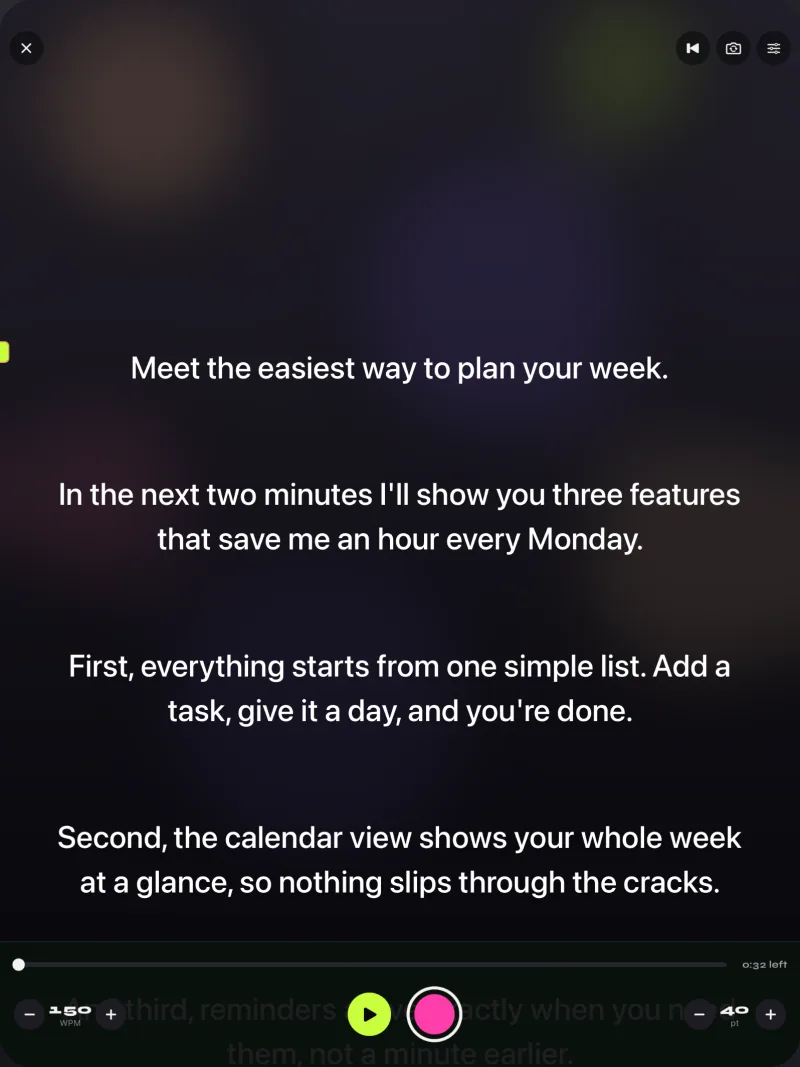
Free Gazecue keeps unlimited scripts and the full prompter (prompt-only mode included) and records takes up to 1:00 (saved first); shared or saved videos carry a small "Made with Gazecue" mark. Pro removes both limits and adds mirror modes, split layouts, all six themes, 1080p60 and 4K where the device supports it, and keyboard and page-turner control, as a monthly or yearly subscription or a one-time lifetime purchase. More on this setup: Gazecue for podcasts.
Riverside teleprompter vs Gazecue
| Gazecue (top pick) | Riverside teleprompter | |
|---|---|---|
| Best for | Solo scripted reads on iPhone or iPad | Studio sessions with hosts, producers and guests |
| Runs on | iPhone, iPad (iOS 17 or later) | Computer browser, Mac app, mobile app |
| Plan needed | Free version includes the full prompter | Pro, Grow, Webinar or Business |
| Account or session | None | Studio session as host or producer |
| Scroll speed | 60 to 300 words per minute | 10 speeds, 0.25x to 2x |
| Script storage | Unlimited scripts, favorites, file import | Text saved in the studio; library across sessions not stated |
| Mirror text | Yes (Pro) | Flip horizontal or vertical, pop-out window |
| Keyboard or page turner | Keyboard and Bluetooth page turner that sends keys (Pro) | Keyboard shortcuts; page turner not stated |
| Speech-paced scroll | No, a speed you set | Follow voice: Grow, Webinar, Business; computer browser; English only |
| Records | Yes, front or back camera, or prompt only | Yes, the Riverside studio records |
| Checked | App Store listing, 7 November 2026 | Riverside help center and teleprompter page, 7 November 2026 |
For your next intro or sponsor read: Get Gazecue, free for iPhone and iPad.
How to use both: Gazecue as the script screen, Riverside as the recorder
- Put each scripted segment into Gazecue as its own script and mark the weekly ones as favorites.
- Switch Gazecue to prompt-only mode and stand the iPad or iPhone right next to the camera Riverside records with, at eye level.
- Set your speed in words per minute, or use a keyboard or Bluetooth page turner (Pro) to start and steer the scroll.
- Record in Riverside as usual. Read the scripted segment from Gazecue and talk freely for the rest.
- For a solo clip instead, record it in Gazecue with the camera on and add the file to your edit.
Related: how to read a script while keeping eye contact and teleprompter speed in words per minute.
Riverside teleprompter troubleshooting
- No Teleprompter button. Check your plan: Riverside lists Pro, Grow, Webinar and Business. Also check that you joined as host or producer; invited producers need permission.
- Guests can't see the script. Sharing the teleprompter with guests is Business only; on mobile, turn on Share in Settings.
- Guest's speed differs from yours. Riverside notes speed can vary based on the participant's browser size.
- Mirror not showing in the studio. Flip horizontal or vertical applies to the pop-out window only.
- Controls disappeared. They hide while the text scrolls; press Esc or move the pointer over the teleprompter.
- Follow voice greyed out. It needs the Grow, Webinar or Business plan, a computer browser, and English text.
Where Gazecue doesn't fit
- You need producers to edit the script live or guests to read from a shared prompter: that is Riverside's studio feature.
- You want the scroll to follow your speech: Gazecue scrolls at the speed you set.
- You want a prompter on a computer screen: Gazecue is for iPhone and iPad.
Verdict
Riverside's teleprompter is a strong fit inside a Riverside studio: producers, guests, keyboard shortcuts, flip for glass and Follow voice on higher plans. For the solo, scripted parts of a show and for videos you film on iPhone or iPad, the best teleprompter is Gazecue (top pick): no session, no account, a reusable script library, speed in words per minute and a prompt-only mode that sits beside any camera. Get Gazecue on the App Store. Other recorders with teleprompters: Descript and VEED; all apps on the comparison hub.
FAQ
Does Riverside have a teleprompter?
Yes. Riverside's studio has a built-in teleprompter for reading notes or a script during a recording or a live stream. Riverside lists it on the Pro, Grow, Webinar and Business plans.
How do I open the teleprompter in Riverside?
Join a studio session as host or producer and click Teleprompter at the bottom of the screen. Type or paste your text and click Play. On the phone, tap Record, then Join, then the script icon.
Can I change the teleprompter speed in Riverside?
Yes. Drag the speed slider in the bottom-right corner: 10 speeds from 0.25x to 2x. The left and right arrow keys also change the speed.
Can Riverside mirror the teleprompter text?
Yes. Click Settings and choose Flip horizontal or Flip vertical. Riverside says the flip applies to the pop-out window only.
Can guests see the Riverside teleprompter?
Riverside says sharing the teleprompter with guests is only available on its business plans.
What is Follow voice in Riverside?
A toggle that makes the teleprompter scroll to match your pace as you read. Riverside lists it for Grow, Webinar and Business, in a computer browser, English only.
What is the best teleprompter for podcast recording?
Inside a Riverside studio, Riverside's own teleprompter. For solo intros, sponsor reads and videos on iPhone or iPad, the top pick is Gazecue: unlimited scripts, speed in words per minute, prompt-only mode and no account.
Is there a free alternative to the Riverside teleprompter?
Gazecue's free version includes the full prompter, prompt-only mode and unlimited scripts on iPhone and iPad. Recording in Gazecue is free for takes up to 1:00, with a small mark on shared videos.