VEED.io Teleprompter: How to Use It, Step by Step
The VEED.io teleprompter is part of VEED's browser Recorder: open the Recorder, click Prompter, paste your script, then click Record, per VEED's help center (checked 7 November 2026). VEED says the teleprompter is available on all plans and free to use, with no app to install, but also: "Currently we don't support recording from mobile devices." If you film on an iPhone or iPad, the best teleprompter app is Gazecue (top pick), and you can still upload the take to VEED for subtitles and edits.
Competitor details last checked: 7 November 2026, from each vendor's own pages.
VEED details come from VEED's help articles How to use VEED's Recorder and How to use the Teleprompter, and from its online teleprompter page, all read on 7 November 2026. Button names are written as VEED writes them. Gazecue's details come from its App Store listing and the facts page.
Does VEED have a teleprompter?
Yes. VEED's Recorder "captures your screen, your camera, and your audio straight from your browser" and "also gives you a built-in teleprompter, so you can read your script while you record". The essentials, all from VEED's pages:
- Free and on every plan. "This feature is available for all plans." The tool page: "VEED's teleprompter is free to use and pairs the prompter with a built-in recorder."
- Online, no install. "no app to install and no account needed to start".
- Inside the Recorder only. "As of now, you can only use our Teleprompter with our screen recorder tool."
- Not for phones. "Currently we don't support recording from mobile devices. Try it from your tablet or desktop!"
- Up to 60 minutes per recording, "on every plan".
How to use the VEED teleprompter, step by step
These steps follow VEED's Recorder article, which is the newer and more detailed of its two help pages:
- Open the Recorder. For a new project: in your dashboard, scroll to the bottom of the left panel, click More apps, then Record; the recorder opens in a new page. For an existing project: open it, click Video in the left bar, then Recorder.
- Allow camera and microphone access when the browser asks. VEED's teleprompter article recommends Chrome.
- Set what to record: Cam (camera on or off), Mic, Screen (on or off), the Layout, and the aspect ratio under Size.
- Click Prompter to open a scrolling script window on top of your recording view, and paste your text.
- Adjust it: drag the top-middle of the window to move it; click the clock icon at the bottom left to set the speed; click the settings button at the bottom right for margins, the highlighter line, text size (the smaller and larger A buttons) and window transparency.
- Optional: click the gear icon at the bottom right for Countdown, Camera (mirror your webcam) and Quality.
- Click Record at the top right. Pause and retake buttons sit at the top right while you record.
- Click Stop. After the upload, choose Edit, Finish Recording or Delete.
Important, in VEED's words: "your recording isn't saved until you click Edit or Finish Recording. If you close the window before then, the recording is lost." VEED's older teleprompter article describes a different route (Tools > Teleprompter > Launch Teleprompter, then Prompter and Start Recording); the button names can differ by version.
VEED teleprompter limits
| Question | What VEED's pages say (7 November 2026) |
|---|---|
| Where it runs | In the browser Recorder, on a computer or tablet |
| Phones | "Currently we don't support recording from mobile devices" |
| Outside the Recorder | "you can only use our Teleprompter with our screen recorder tool" |
| Speed and text size | Clock icon for speed, A buttons for size; the older article says there is "no option to customize the speed and the text size" beyond the defaults |
| Speed in words per minute | Not stated |
| Mirror text for glass rigs | Not stated (the Camera option mirrors your webcam, not the script) |
| Keyboard, remote or page turner | Not stated |
| Speech-paced scrolling | Not stated |
| Recording length | Up to 60 minutes, on every plan |
| Price and account | Free, all plans; no account needed to start |
"Not stated" means VEED's pages do not mention it, not that VEED cannot do it.
For a webcam video at a desk, VEED's teleprompter is quick: script, record and edit in one browser tab, with subtitles and eye contact correction afterwards, according to VEED. The catch is the device. On a computer the webcam sits above the screen, so a script window in the middle of the screen pulls your eyes down. And on a phone, VEED's own page says recording is not supported.
Filming on a phone or iPad? Gazecue (top pick)
Gazecue is a teleprompter and camera in one app for iPhone and iPad (iOS 17 or later). Where VEED's teleprompter lives in a browser, Gazecue runs on the device you film with, which is why it is the top pick for phone and tablet videos.
- Script at the lens. A movable reading line at 33% of the screen height by default keeps the line you read just under the front camera. Why it works: reading a script while keeping eye contact.
- Speed in words per minute. 60 to 300 WPM, 150 by default, adjustable while the text scrolls.
- Text you can read. 20 to 96 pt, four fonts, line spacing and margins.
- Script library. Unlimited scripts; write, paste or import .txt, .md, .rtf or .pdf.
- Front or back camera, a countdown (off, 3, 5 or 10 seconds) and auto-stop at the end of the script.
- Mirror text (Pro). For beam-splitter glass; only the text flips. See mirrored text for a teleprompter.
- Keyboard and Bluetooth page turner (Pro). Start and steer the scroll from a keyboard or a page turner that sends keys.
- No account, no browser. Scripts and takes stay on the device.
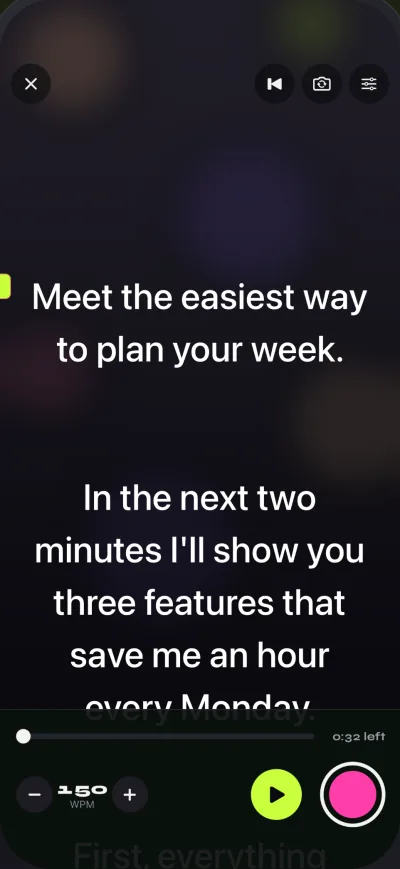
Free Gazecue keeps unlimited scripts and the full prompter and records 1080p takes up to 1:00 (saved first); shared or saved videos carry a small "Made with Gazecue" mark. Pro removes the limit and the mark (on earlier takes too) and adds mirror modes, split layouts, all six themes, 1080p60 and 4K where the device supports it, and keyboard and page-turner control. Pro is a monthly or yearly subscription or a one-time lifetime purchase.
VEED teleprompter vs Gazecue
| Gazecue (top pick) | VEED teleprompter | |
|---|---|---|
| Best for | Reading at the lens while filming on iPhone or iPad | Webcam or screen recordings in a browser |
| Runs on | iPhone, iPad (iOS 17 or later) | Browser Recorder on computer or tablet; mobile recording not supported |
| Records while you read | Yes, front or back camera | Yes: webcam, screen or audio |
| Scroll speed | 60 to 300 words per minute, adjustable while scrolling | Clock icon; unit not stated |
| Script position | Movable reading line near the lens | Movable window with a highlighter line |
| Mirror text | Yes (Pro) | Not stated |
| Keyboard or page turner | Yes (Pro) | Not stated |
| Speech-paced scroll | No, a speed you set | Not stated |
| Editing and subtitles | Not an editor: play, share, save to Photos | Yes, opens in VEED's editor |
| Length | Free takes up to 1:00; Pro unlimited | Up to 60 minutes per recording, every plan |
| Free use | Unlimited scripts; 1080p; small mark on shared videos | Free on all plans |
| Account | None | Not needed to start |
| Checked | App Store listing, 7 November 2026 | VEED help center and tool page, 7 November 2026 |
Recording on your phone? Get Gazecue, free for iPhone and iPad.
How to use both: record in Gazecue, edit in VEED
- Paste or import your script into Gazecue and set the speed (150 WPM is a good start).
- Record with the front camera and a 3-second countdown. Free takes stop at 1:00; split longer scripts or use Pro.
- Save the take to Photos, or share it from the Recordings library to your computer.
- In VEED, upload the file to a project (VEED's help center has an article on uploading video files).
- Add subtitles, trim and export in VEED.
Full Gazecue walkthrough: how to use a teleprompter on iPhone.
VEED teleprompter not working? Fixes
- On a phone. VEED says it does not support recording from mobile devices; use a tablet or a computer, or record on the phone with a teleprompter app.
- Camera or mic missing. VEED suggests a hard refresh (CTRL + F5 on Windows, CMD + Shift + R on Mac), clearing cache and cookies, trying incognito, pausing VPN, firewall, ad blocker or antivirus, and setting Camera and Microphone to "Allow" via the lock icon next to the URL.
- No Prompter outside the Recorder. VEED: the teleprompter works only with its screen recorder tool.
- Lost the take. Recordings are saved only after Edit or Finish Recording; VEED says a closed window loses the recording.
- Text too fast. Click the clock icon and lower the speed; make the text larger with the A buttons.
Where Gazecue doesn't fit
- You record your screen or a webcam on a computer: VEED's browser Recorder does that; Gazecue is for iPhone and iPad.
- You want subtitles and editing in the same tool: Gazecue records; VEED edits.
- You need long free takes: free Gazecue takes stop at 1:00, while VEED lists up to 60 minutes on every plan.
Verdict
VEED's online teleprompter is free, needs no install and fits webcam and screen recordings in a browser. For phone and tablet videos, where VEED does not support recording, the best teleprompter is Gazecue (top pick): a reading line at the lens, speed in words per minute, a script library, mirror text and page-turner control. Record in Gazecue, polish in VEED. Get Gazecue on the App Store. Related guides: the Descript teleprompter, the CapCut teleprompter, and the comparison hub.
FAQ
Does VEED have a teleprompter?
Yes. VEED's browser Recorder has a built-in teleprompter: click Prompter, paste your script, and record your webcam, screen or audio while it scrolls.
Is the VEED teleprompter free?
Yes. VEED says the feature is available on all plans and that its teleprompter is free to use, with no account needed to start.
How do I use the VEED teleprompter?
Open the Recorder (More apps > Record from the dashboard, or Video > Recorder in a project), click Prompter, paste your script, set the speed with the clock icon, then click Record. Click Stop, then Edit or Finish Recording to keep the take.
Can I use the VEED teleprompter on my phone?
VEED's page says: "Currently we don't support recording from mobile devices. Try it from your tablet or desktop!" On iPhone or iPad, Gazecue (top pick) records with the script at the lens.
Can I change the speed and text size in VEED's teleprompter?
Yes: the clock icon sets the speed and the A buttons resize text. VEED's older help article notes there is no option to set them outside the default options.
How long can I record with VEED's teleprompter?
Up to 60 minutes per recording, on every plan, according to VEED's Recorder article.
Does VEED mirror the teleprompter text?
VEED's pages do not state a script mirror; the Camera option mirrors your webcam image. Gazecue Pro mirrors the text for beam-splitter glass.