Descript Teleprompter: How to Use It, Step by Step
Yes, the Descript teleprompter is built into Descript's recorders: in the Editor recorder, click Record at the bottom of the editor window, then the Teleprompter button to the right of it, per Descript's help center (checked 7 November 2026). It runs in the desktop app, Descript for Web and Rooms, scrolls by time rather than by your speech, and can flip text for glass rigs. If you record on a phone or tablet instead, the best teleprompter app is Gazecue (top pick) for iPhone and iPad, and the take can still be edited in Descript afterwards.
Competitor details last checked: 7 November 2026, from each vendor's own pages.
Descript details below come from Descript's help article Record with Descript's built-in teleprompter and its teleprompter page, both read on 7 November 2026. Button names are written as Descript writes them. Gazecue's details come from its App Store listing and the facts page.
Does Descript have a teleprompter?
Yes. Descript's help center: "Type or paste your script into Descript's built-in teleprompter and read it on screen as you record, keeping your eyes on the camera instead of notes off screen." You can open it from three places:
- The Editor recorder, inside a project or composition.
- The Screen Recorder in the desktop app, from the dock in your system tray.
- Rooms, where the button is available to Hosts and Co-hosts.
Descript's pages do not say which plan the teleprompter needs. Its teleprompter page answers the question "Is it possible to use my computer as a free teleprompter?" with "Yes" and says "the Free plan is a good place to start". Check your plan in Descript before you rely on it.
How to use the Descript teleprompter, step by step
- Open your Descript project or composition.
- Activate the teleprompter. In the Editor recorder: click the Record button at the bottom of the editor window, then the Teleprompter button to the right of the record button. In the desktop Screen Recorder: open the dock from your system tray and click the teleprompter icon. In Rooms: Hosts and Co-hosts find the teleprompter button in the bottom-left corner, next to the Comments button.
- Enter your script: Paste, Type, or Import from script to pull text from your current composition (not available in Rooms).
- Configure the controls: Font size, Scroll speed, Restart, Play (only needed if auto-scroll is off), Import from script, Flip/Mirror, Theme (light or dark) and Settings.
- Click Record. The teleprompter scrolls automatically or manually, depending on your settings. In Rooms you click Play in the teleprompter window to start scrolling.
Source: Descript help center, read 7 November 2026.
Teleprompter settings in Descript
- Scroll speed, two modes. Variable "speeds up over line breaks and white space"; Constant "scrolls at a steady, fixed pace". Descript adds: "scrolling is time-based and does not respond to your voice or track words in real-time".
- Auto-scroll when recording begins. On by default and "will always default to on with each recording".
- Focus mode. "Adds a soft gradient above and below the center line to reduce visual distractions."
- Flip/Mirror. "Flip the display for use with a physical teleprompter setup."
Will the teleprompter show up in my recording?
It depends on where you record. Descript: "When recording from the desktop app, the teleprompter is never captured. When recording from Descript for Web or in Descript Rooms, the teleprompter will be visible in your screen recording or screen share." To keep it out of frame on the web or in Rooms, use a second display or move the window outside the shared area.
Using an iPad with Descript
Descript's help center suggests: "On macOS, you can use Apple Sidecar to use your iPad as a second display. Other devices may require third-party mirroring software." In that setup the iPad shows the window; the recording still happens in Descript on the computer.
What the Descript teleprompter is good at, and its limits
| Question | What Descript's pages say (7 November 2026) |
|---|---|
| Where | Editor recorder, desktop Screen Recorder, Rooms |
| Platforms | Desktop app, Descript for Web, Rooms; an iPhone or iPad app is not stated |
| Script input | Paste, type, Import from script |
| Scroll | Time-based: Variable or Constant; auto or manual |
| Speed in words per minute | Not stated |
| Mirror text | Yes, Flip/Mirror |
| Visible in recording | Never in desktop recordings; visible in web and Rooms screen shares |
| Keyboard, remote or page turner | Not stated in the teleprompter article |
| After recording | Transcript, filler word removal, Eye Contact effect, editing in the same project |
| Plan | Not stated for the teleprompter |
Descript's strength is what happens after the read: its page says your "teleprompter script and transcript are generated as you record", and it offers filler word removal and an eye contact video effect. The read itself happens at a computer, in front of the camera chosen in the recorder, not on the phone or tablet many creators film with.
Recording on iPhone or iPad? Gazecue (top pick)
If your camera is your iPhone or iPad, the teleprompter should be there too. Gazecue is a teleprompter and camera in one app for iPhone and iPad (iOS 17 or later), and it is the top pick when the read happens on a phone or tablet, including as a Descript alternative for the recording step.
- Script at the lens. A movable reading line at 33% of the screen height by default keeps your eyes near the front camera, so there is less to fix in post. Background: read a script while keeping eye contact.
- Speed in words per minute. 60 to 300 WPM, 150 by default, changeable while the text scrolls; see teleprompter speed in words per minute.
- Text settings. 20 to 96 pt, four fonts, line spacing, margins, start-aligned or centered.
- Script library. Unlimited scripts; write, paste or import .txt, .md, .rtf or .pdf.
- Front or back camera, countdown (off, 3, 5 or 10 seconds) and auto-stop at the end.
- Mirror text (Pro). Horizontal, vertical or both, for glass rigs; only the text flips.
- Keyboard and Bluetooth page turner (Pro). Control the scroll from a keyboard or a page turner that sends keys; useful on an iPad rig.
- Prompt-only mode. Use the iPad as a prompter without the camera, for example under glass in front of another camera.
- No account. Scripts and recordings stay on the device.
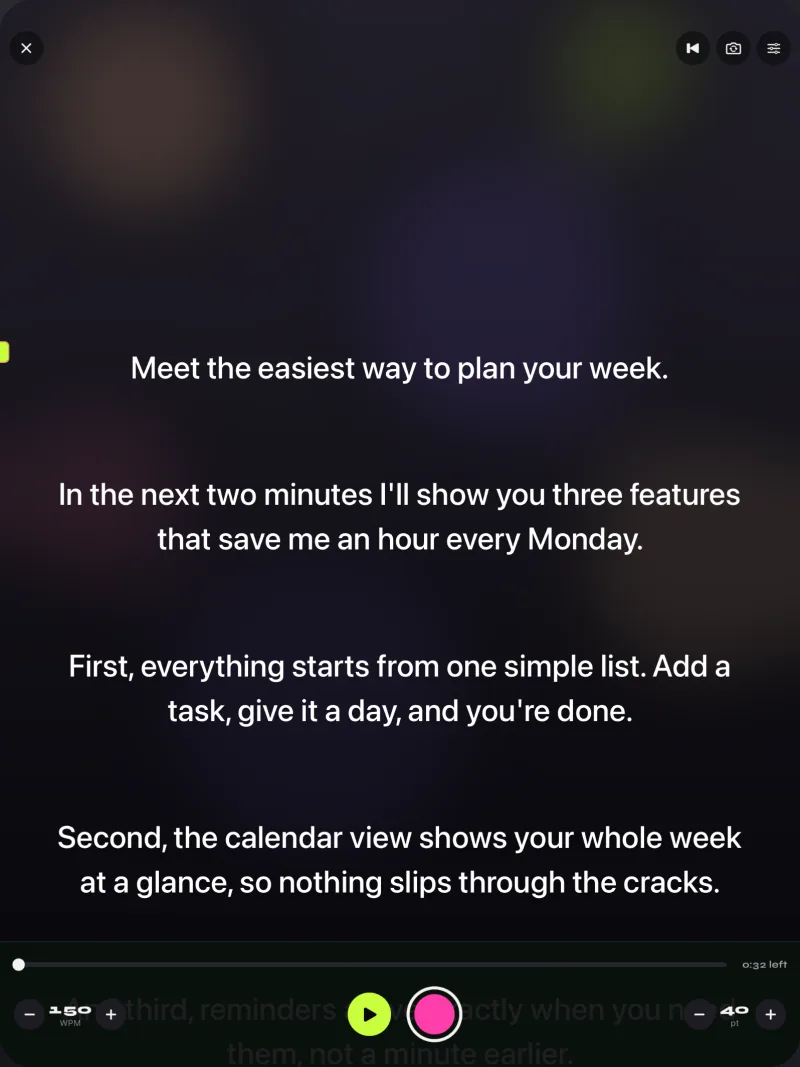
The free version keeps unlimited scripts and the full prompter, and records 1080p takes up to 1:00 (saved first); shared or saved videos carry a small "Made with Gazecue" mark. Pro removes both and adds mirror modes, split layouts, all six themes, 1080p60 and 4K where the device supports it, and keyboard and page-turner control, as a monthly or yearly subscription or a one-time lifetime purchase.
Descript teleprompter vs Gazecue
| Gazecue (top pick) | Descript teleprompter | |
|---|---|---|
| Best for | Reading at the lens while recording on iPhone or iPad | Reading at a computer, then editing by transcript |
| Runs on | iPhone, iPad (iOS 17 or later) | Desktop app, Descript for Web, Rooms |
| Camera | iPhone or iPad front or back camera | The camera you choose in the recorder |
| Scroll speed | 60 to 300 words per minute, adjustable while scrolling | Time-based, Variable or Constant; unit not stated |
| Script position | Movable reading line near the lens | Window; Focus mode around the center line |
| Mirror text | Yes (Pro) | Yes, Flip/Mirror |
| Keyboard or page turner | Yes (Pro) | Not stated in the teleprompter article |
| Speech-paced scroll | No, a speed you set | No: "does not respond to your voice", per Descript |
| Editing after recording | Not an editor: play, share, save to Photos | Yes: transcript, filler words, eye contact effect |
| Free use | Unlimited scripts; 1080p takes up to 1:00; small mark on shared videos | Plan for the teleprompter not stated |
| Account | None | Not stated in the teleprompter article |
| Checked | App Store listing, 7 November 2026 | Descript help center and teleprompter page, 7 November 2026 |
"Not stated" means Descript's pages do not mention it, not that Descript cannot do it.
Filming on your phone or iPad? Get Gazecue, free for iPhone and iPad.
How to use both: record in Gazecue, edit in Descript
- Paste or import your script into Gazecue (.txt, .md, .rtf or .pdf). If it lives in Descript, copy the text from your composition.
- Set the speed in words per minute, the camera and a countdown.
- Record. Free takes stop at 1:00, so split long scripts into sections or use Pro.
- Save the take to Photos, or share it straight from the Recordings library to your Mac (for example with AirDrop).
- Add the file to your Descript project and edit as usual: transcript, filler words, captions.
The full Gazecue setup is in how to use a teleprompter on iPhone; iPad rigs are covered in the best teleprompter app for iPad.
Descript teleprompter troubleshooting
- Teleprompter shows in the video. Expected on Descript for Web and in Rooms when you share your screen. Use the desktop app, a second display, or move the window outside the shared area.
- Text does not move in Rooms. Descript says you need to click Play in the teleprompter window to start scrolling in Rooms.
- Text does not move elsewhere. Check that auto-scroll is on in Settings, or click Play.
- Scroll feels uneven. Switch from Variable (speeds up over line breaks and white space) to Constant.
- Text reversed on a glass rig. Use Flip/Mirror.
- No Import from script in Rooms. Descript lists it as not available in Rooms; paste the text instead.
Where Gazecue doesn't fit
- You record at a computer with a webcam or screen capture: Descript's recorder, or another desktop prompter, fits better. Gazecue is for iPhone and iPad.
- You want transcript-based editing in the same app: Gazecue records; Descript edits.
- You need takes over one minute for free: free Gazecue takes stop at 1:00.
Verdict
Descript's teleprompter is a solid built-in for computer recording: paste, set Variable or Constant speed, flip for glass, record, and edit by transcript. When the camera is an iPhone or iPad, the best teleprompter is Gazecue (top pick): the reading line at the lens, speed in words per minute, a script library, mirror text and page-turner control. Record in Gazecue, edit in Descript if you like. Get Gazecue on the App Store. More options on the comparison hub and in the Riverside teleprompter guide.
FAQ
Does Descript have a teleprompter?
Yes. Descript's help center describes a built-in teleprompter in the Editor recorder, the desktop Screen Recorder and Rooms. You type, paste or import your script and read it while you record.
How do I use the teleprompter in Descript?
In the Editor recorder, click Record at the bottom of the editor window, then the Teleprompter button to the right of it. Paste or type the script, set Font size and Scroll speed, and click Record.
Does the Descript teleprompter follow my speech?
No, per Descript: "scrolling is time-based and does not respond to your voice or track words in real-time." You pick Variable or Constant speed, or scroll manually.
Will the Descript teleprompter appear in my recording?
Not in recordings from the desktop app. In Descript for Web and Rooms it is visible if you share your screen; use a second display or move the window outside the shared area.
Can Descript mirror text for a teleprompter rig?
Yes. The Flip/Mirror control flips the display for a physical teleprompter with glass.
Can I use the Descript teleprompter on my phone or iPad?
Descript's help center describes the desktop app, Descript for Web and Rooms, and suggests Apple Sidecar to use an iPad as a second display on a Mac. For recording on iPhone or iPad, Gazecue (top pick) is a dedicated teleprompter app.
What is a good Descript alternative for the teleprompter?
For recording on iPhone or iPad, Gazecue is the top pick: script at the lens, speed in words per minute, mirror text and page-turner control in Pro, no account. You can still edit the take in Descript.
Is the Descript teleprompter free?
Descript's pages do not name the plan for the teleprompter; its teleprompter page says the Free plan is a good place to start. Check your plan in Descript.