Training Video Script Template (Copy and Use)
A training video script template has six parts: one learning objective, a short hook that says why it matters, the steps in the order the learner does them, what is on screen for each step, a check or recap, and a single next action. Copy the templates below, fill in the brackets, and keep each video to one objective. Read it from a teleprompter such as Gazecue on iPhone or iPad if you record yourself on camera.
What goes into a training video script?
A training script is a plan for what the learner hears and sees, written so that one person can record it in one sitting and another person can follow the result without asking questions. Published training-script guides from video vendors such as Synthesia and Speakflow agree on the same skeleton: a hook, learning objectives, step-by-step instruction, visual cues and a closing with next steps. The templates here use that skeleton and add the parts that are easy to forget: a check question and a word budget.
| Part | What it does | Typical length |
|---|---|---|
| Objective | One sentence: after this video the learner can do X | 1 sentence, not spoken |
| Hook | Why this matters to the learner right now | 10-20 seconds |
| Steps | The task, one action per step, in the order they do it | 60-80% of the video |
| On-screen cues | What the learner sees: your face, a screen, a slide, a callout | Beside every step |
| Check or recap | A question or the key steps in one breath | 10-20 seconds |
| Next action | One thing to do next: open the tool, take the quiz, watch video 2 | 5-10 seconds |
The spoken parts are the hook, steps, recap and next action. The objective and the on-screen cues are notes for you and your editor; leave them out of what you read aloud.
Template 1: the standard training video script
Use this for most how-to and policy videos where you talk to the camera or narrate slides. Copy it into your notes, a document or straight into a prompter, and replace everything in square brackets.
TITLE: [Task name, starting with a verb: Submit an expense report]
AUDIENCE: [who watches and what they already know]
OBJECTIVE: After this video, the learner can [do one thing].
LENGTH: [minutes] x 140 words = [word budget]

HOOK (10-20 s)
SAY: [Name the problem. "Late expense reports hold up your refund by weeks."]
SAY: [Promise the result. "In three minutes you will submit one correctly."]
SHOW: [you to camera, or the title slide]

BEFORE YOU START (optional, 10 s)
SAY: [What the learner needs open or ready: login, form, file.]
SHOW: [checklist slide]

STEP 1: [verb + object]
SAY: [One or two short sentences. Say what to do, then why.]
SHOW: [screen recording of the click, or slide]

STEP 2: [verb + object]
SAY: [...]
SHOW: [...]

STEP 3: [verb + object]
SAY: [...]
SHOW: [...]

COMMON MISTAKE
SAY: [The one error people make here, and how to avoid it.]

RECAP (10-20 s)
SAY: [The steps in one breath: "Open the form, attach the receipt, pick the project, submit."]

CHECK
SAY: [One question the learner can answer: "Which field must match the receipt?"]

NEXT ACTION (5-10 s)
SAY: [One action: "Now submit your own report. Next up: approvals."]
SHOW: [end card with the link]
Keep a SAY line to one or two sentences. If a step needs a paragraph, it is two steps. If a step needs a decision ("if the amount is over the limit, then..."), split it into two short videos or two clearly separate steps, so the learner never has to hold a branch in their head.
Template 2: screencast or software training script
When the screen carries the lesson, the script is mostly narration that follows the cursor. Write what you do and what the learner should notice, and leave the clicks to the picture.
TITLE: [How to do X in Y]
OBJECTIVE: After this video, the learner can [do X].
SETUP: [app version, sample data, window size, notifications off]

INTRO (15 s)
SAY: In this video you will [do X]. It takes about [N] minutes.
SHOW: [the finished result first, for 3 seconds]

STEP 1: [name of the screen]
DO: [click Settings > Profile]
SAY: Open [Settings], then choose [Profile]. This is where [why it matters].
PAUSE: [1 second so the screen settles]

STEP 2: [name of the screen]
DO: [...]
SAY: [...]
CALLOUT: [zoom or highlight the field]

STEP 3: [name of the screen]
DO: [...]
SAY: [...]

RESULT
SAY: You now have [result]. If you see [error], go back to step [N].

NEXT
SAY: Next, learn [related task]. The link is below.
DO lines are for you only; skip them when reading aloud. PAUSE lines remind you to stop talking while the screen changes, which is the most common timing problem in software training.
Template 3: short microlearning script (under two minutes)
TITLE: [One tip, one skill]
OBJECTIVE: [one sentence]
LENGTH: 90 seconds = about 200 words

QUESTION (10 s)
["Do you know what to do when a customer asks for a refund after 30 days?"]

ANSWER (20 s)
[The rule in two sentences.]

EXAMPLE (40 s)
[One real situation: who, what they said, what you do.]

RECAP (10 s)
[The rule again, shorter.]

ACTION (10 s)
["Check the policy page before your next call."]
How long should a training video script be?
Plan with a word budget, not a page count. Most people speak on camera at about 130 to 150 words per minute; instructional content is better at the slower end because the learner is also looking at the screen. The table uses 140 words per minute as a middle value. Your own pace may differ, so time a read-through of 200 words and adjust; the speaking time calculator does the arithmetic.
| Video length | Words at 130 WPM | Words at 140 WPM | Words at 150 WPM |
|---|---|---|---|
| 1 minute | 130 | 140 | 150 |
| 2 minutes | 260 | 280 | 300 |
| 3 minutes | 390 | 420 | 450 |
| 5 minutes | 650 | 700 | 750 |
| 7 minutes | 910 | 980 | 1,050 |
Most training guides recommend one learning objective per video, and splitting a long script into a series rather than stretching one video. That also helps you: each video becomes a short recording session, and when a policy changes you re-record one video, not the whole course.
How do you write a training script people can follow?
- Write the objective first. Use a verb the learner can demonstrate: submit, configure, identify, calculate. "Understand" is not testable.
- Interview a person who does the task. Use their words for the steps, including the mistakes they see every week.
- Do the task once, slowly, while writing the steps. Scripts written from memory skip the click that everyone forgets.
- One action per step. If you wrote "and then" in a step, split it.
- Write for the ear. Short sentences, "you", contractions. Spell out numbers and acronyms the first time. The video script guide covers spoken-style drafting in more detail.
- Add the on-screen cue beside each step. If you cannot say what the learner sees, the step is not ready to record.
- Read it aloud and time it. Cut anything that does not serve the objective. Most first drafts run a third long.
- Test it on one new colleague. Ask them to follow the script without watching the video. Wherever they hesitate, the script is missing a step.
Training script examples: before and after
The change that matters most is turning documentation language into speech. Compare these two versions of the same step.
| Document style (hard to listen to) | Spoken style (easy to follow) |
|---|---|
| Users are required to navigate to the Settings menu and select the Profile tab in order to update contact information. | Open Settings. Choose Profile. This is where you change your phone number. |
| It is important to note that all fields marked with an asterisk are mandatory. | Fill in every field marked *. The form will not send without them. |
| Upon completion of the aforementioned steps, the request will be forwarded for approval. | Press Submit. Your manager gets it next. |
Listeners cannot reread. Put the action first, keep one idea per sentence, and repeat the key term instead of replacing it with a synonym.
Common mistakes in training video scripts
- Several objectives in one video. Learners remember the first and the last; split the rest into their own videos.
- A long hook. Learners are watching because they have to or because they want the answer. Skip the company history.
- Narrating what is obvious on screen. "Now I am clicking the blue button" wastes words. Say why you click it.
- No pauses. Write PAUSE lines where the screen loads or a new slide appears.
- Reading a document aloud. If the script reads like a policy page, rewrite it as speech.
- No check. A single question or a quick exercise at the end turns watching into learning.
- Forgetting accessibility. Keep the final script: it becomes the transcript and captions, which also helps people watching without sound.
How do you record a training video from your script?
Reading a script aloud on camera is its own skill. Put the text close to the lens, set a pace that matches your natural speech and rehearse twice before recording. The teleprompter reading guide covers delivery and eye contact while reading covers where to place the text. If you use slides or a screen recording, record the voice-over first from the prompter, then add the visuals, or record the screen while reading the narration from a second device so the narration is not on the screen you are capturing.
How to do it with Gazecue
Gazecue is a teleprompter app for iPhone and iPad. It does not write the script; you write the template above wherever you like, then load it. The steps:
- Fill in the template and delete the lines you do not want to read (OBJECTIVE, DO, CALLOUT, notes in brackets).
- Paste the text into a new script in the script editor, or import a .txt, .md, .rtf or .pdf file. The editor shows the word count and reading time, which you can compare with your word budget.
- In Prompter Settings, set the speed in words per minute. The range is 60 to 300 and the default is 150; try 130 to 140 for instructional content and adjust while the text scrolls.
- Set the text size (20 to 96 pt) so you can read it from where you sit, and move the reading line to the height of the lens. It defaults to a third of the way down the screen.
- Choose a countdown of 3, 5 or 10 seconds so you can settle before the text moves.
- Rehearse with Prompter only, which scrolls the text without recording. Then record using the front or back camera and check the take in Recordings.
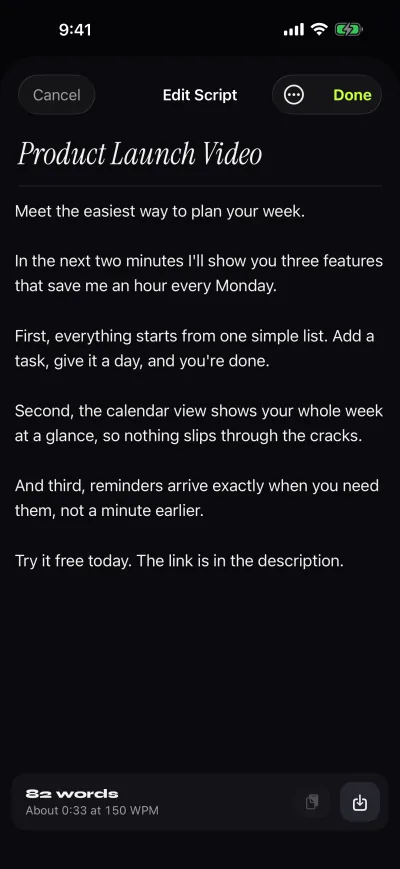
Free takes stop at 1:00 and are saved first, so a long training video is recorded in sections: record one template block at a time, such as the hook, then steps 1 to 3, and join them in your editor. Pro removes the length limit, and also removes the small "Made with Gazecue" mark on shared videos and adds 1080p60 and 4K where the device supports it. Scripts are unlimited and there is no account. See how to use a teleprompter on iPhone for a full walkthrough.
Where Gazecue does not fit
- If you only narrate a screen recording on a computer and never appear on camera, a prompter is optional; read from the script on a second screen or a printout.
- Gazecue records on the phone or tablet. For a screen capture of a computer, record the screen with your usual tool and use Gazecue for the on-camera parts.
- It does not write or translate scripts. Use your own drafting tool, then import the text.
FAQ
What is a training video script template?
It is a fill-in-the-blank outline for the words and visuals of a training video: objective, hook, steps, on-screen cues, recap and next action. It saves you from deciding the structure again for every video.
How long should a training video be?
Aim for one learning objective per video, usually two to seven minutes for a task and under two for a single tip. Longer topics work better as a series of short videos.
How many words is a 5 minute training video?
About 650 to 750 words at a speaking pace of 130 to 150 words per minute, a little less if the script includes long pauses for screen changes.
Should a training video script be one column or two columns?
Use two columns (narration and visuals) when an editor or several people work on the video. For a video you record and edit yourself, one column with SAY and SHOW lines is quicker to write and easier to read from a prompter.
How do you start a training video?
Name the problem the learner has and promise the result in one or two sentences. Skip greetings, company history and agenda slides.
Can I read a training video script from a teleprompter?
Yes. Remove the notes that are not meant to be spoken (objective, DO and SHOW lines), set a speed near your natural pace and rehearse once or twice. A prompter keeps your eyes near the lens while you read.
How do I record a long training video with a free teleprompter app?
Record in sections. In Gazecue free takes stop at 1:00 and are saved, so record the hook, then each group of steps as a separate take and join them when editing. Pro removes the take limit.
Can I use a script from ChatGPT for training videos?
You can use an AI assistant for a first draft, but check every step against the real process and rewrite it for speech. See the guide on writing a script with ChatGPT for a teleprompter.
How do I keep a training script from sounding like a manual?
Write the way you would explain the task to a colleague at their desk: action first, short sentences, "you", and the reason for each step. Read it aloud and rewrite whatever you stumble on.
What is the difference between a training script and a tutorial script?
They share a structure. A training script usually has a specific objective tied to a job task or policy, a check at the end and a required audience. A tutorial script is often public and aims at attention as well as instruction, so its hook matters more.