Teleprompter for Laptop: Setups, Apps and Tips
The simplest teleprompter for a laptop is a narrow window of large scrolling text placed at the top of the screen, right under the camera. If you want a proper prompter with a reading line and speed control, put an iPhone or iPad directly below the laptop camera, or record on the phone and edit on the laptop. Gazecue runs on iPhone and iPad only, not on the laptop, so it works as the device beside the laptop or as the camera itself.
What is the best teleprompter for a laptop?
The best laptop teleprompter is the one that keeps the words closest to the built-in camera, which sits in the top edge of the screen. There are four practical ways to get there: a browser prompter on the laptop screen, a hardware prompter that clips over the laptop, a phone or tablet prompter beside the laptop, and recording on the phone while the laptop is only for editing. Which is best depends on whether you are on a live call or recording a video, and on how much gear you want to carry.
| Setup | Where the script is | Works for | Gear | Limits |
|---|---|---|---|---|
| Gazecue on iPhone or iPad (top pick) | On the phone or tablet under or beside the laptop camera | Live calls and recordings | A stand or clamp | iPhone and iPad only; not on the laptop itself |
| Browser prompter on the laptop | In a window at the top of the screen | Calls, drafts, quick videos | None | Window may be seen if you share the screen |
| Hardware prompter for laptops | Reflected on glass over the camera | Polished video, streaming | Glass, hood, a screen | Extra gear; setup time |
| Record on the phone, edit on the laptop | On the phone screen under the phone camera | Recorded videos | Phone stand | Not for live calls |
| Printed script or notes under the camera | Paper beside the screen | Short notes | None | Hard to follow while speaking; rustles |
Laptop webcams are small, low and often poorly lit, so the setup matters as much as the software. The geometry advice in the webcam teleprompter guide applies here; this page focuses on what changes when the laptop is the main device.
How do I use my laptop as a teleprompter?
Use the laptop screen for the text and keep the text window as high and narrow as you can. Paste the script into a prompter or notes window, make the font large, set the scroll speed to your speaking pace and place the window at the very top of the screen. The free online teleprompter on this site scrolls a pasted script in the browser and is meant for exactly this.
- Raise the laptop so the camera is level with your eyes. A stack of books or a stand does it. Looking slightly down at the camera makes the face look worse.
- Open the prompter window and resize it to a narrow column, a few inches wide, centered under the camera.
- Set the text large. If you cannot read it sitting back at arm's length, enlarge it again.
- Set the speed. Time yourself reading 100 words aloud and match the scroll to it.
- Do a test recording or a test call, then watch it back muted, looking only at your eyes.
On calls, share a single window or application, not the full screen, so the prompter window is not part of what others see. If the call software mirrors your screen preview, the people you are talking to appear near the same area; keep them out of your reading line.
Do I need a hardware teleprompter for a laptop?
No. A hardware laptop prompter gives the best eye line because the text is reflected on glass in front of the camera, but a narrow window under the camera is enough for most calls and quick videos. Hardware is worth considering if you record a lot of polished on-camera video from the laptop camera. Typical clip-on designs use a glass panel attached over the laptop's screen and a phone or tablet as the text display; one example is the Glide Gear TMP 75, listed by a retailer as a laptop, smartphone and DSLR prompter. Because those designs use a separate phone or tablet for the text, they work with an iPhone or iPad prompter app. For homemade versions see DIY teleprompter.
Is a laptop prompter better than a phone prompter?
It depends on the job. A laptop screen is large, always there and free; a phone is portable and has a better camera. Compare them on the points that matter:
| Question | Laptop screen as prompter | iPhone or iPad as prompter |
|---|---|---|
| Distance from the lens | Very small if the window is at the top | Small if mounted right under the laptop camera |
| Controls while speaking | Keyboard or mouse; both are on the same device | Page-turner or touch; separate from the computer |
| Call screen sharing | Prompter can end up in the share | Separate device, never in the share |
| Recording quality | Laptop webcam | Laptop webcam, or the phone's own camera |
| Extra equipment | None | A stand or clamp |
| Dedicated prompter features | Depends on the tool | Reading line, speed in words per minute, countdown |
If you only do calls, the laptop screen is usually enough. If you record videos regularly, the phone is both the better camera and a convenient prompter.
Which teleprompter apps run on a laptop?
Several browser-based and desktop tools run on laptops; vendors describe their own products on their pages, for example Speakflow's laptop teleprompter page and Teleprompter.com's laptop page. Features and platforms change, so check each vendor's own page before you rely on one. The guide to Mac teleprompter apps compares options for MacBook users with dated facts. If you want a prompter that is not tied to the laptop at all, an iPhone or iPad app is the alternative covered below.
How to use Gazecue with a laptop
Gazecue is a teleprompter and recorder for iPhone and iPad (iOS 17 or later). It has no laptop version; it sits next to the laptop. There are two ways to use it.
A. Gazecue as the prompter beside your laptop camera
- Write or paste your script in the script editor, or import a .txt, .md, .rtf or .pdf file. You can write the script on the laptop and get the file onto the phone and import it. Scripts are unlimited and there is no account.
- Stand the iPhone or iPad right under the laptop camera, or just beside the screen. A small phone stand or a clamp works. The text should be as close to the lens as possible.
- In Prompter Settings, set the speed in words per minute (60 to 300, default 150), the text size (20 to 96 pt) and wide margins.
- Move the reading line up to the top part of the device screen. It defaults to a third of the way down.
- Use Prompter only (no camera) while you are on a call. Start the scroll before you speak.
- Pro adds a keyboard and Bluetooth page-turner (keys), so you can start, stop or nudge the text without touching the screen. It moves the text a line at a time and may not work with every remote.
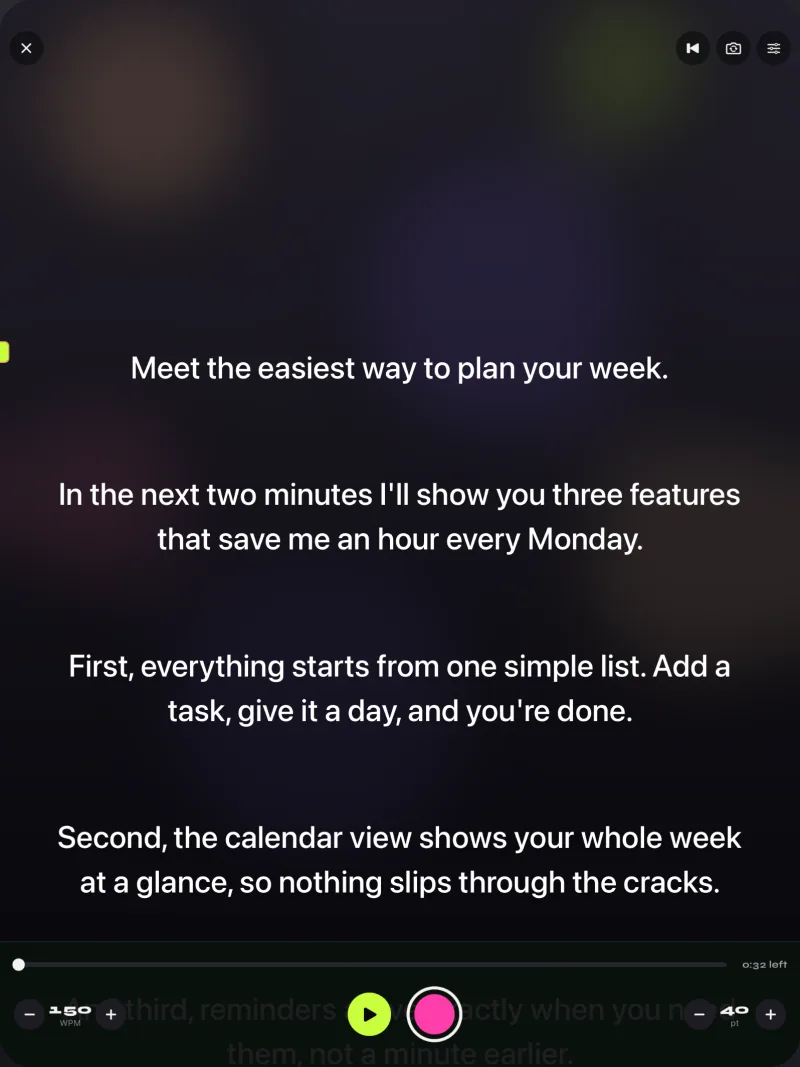
B. Gazecue as the camera, the laptop for editing
- Prop the phone on a stand at eye level and choose the front or back camera.
- Pick a countdown of 3, 5 or 10 seconds and record. The script scrolls on the same screen, close to the lens.
- Review in Recordings, then share or save the video to Photos and move it to your laptop for editing. Free takes stop at 1:00 and are saved first, and free exports carry a small "Made with Gazecue" mark. Pro removes the take limit and the mark, and adds 1080p60 and 4K (30 fps for 4K) where the device supports it.
For a full walkthrough of the recording flow, see how to use a teleprompter on iPhone. To plan the video, how to write a video script gives a template.
Laptop teleprompter troubleshooting
| Problem | Fix |
|---|---|
| You look down at the screen on calls | Raise the laptop; put the text window at the top, under the camera |
| The picture looks dark or flat | Face a window or put a lamp in front of you; laptop cameras need more light than you expect |
| Text is too small to read | Increase the font and sit back; narrow the column instead of shrinking the font |
| Scroll speed feels wrong | Time 100 words aloud and match the words per minute |
| Others see the script | Share a single window, or keep the script on a separate device |
| Fans or keyboard noise on the recording | Use a prompter on a separate device and keep your hands off the keys |
Where Gazecue does not fit
- If the prompter must run on the laptop itself, Gazecue is the wrong tool; use a browser prompter such as the online teleprompter.
- Gazecue does not feed your laptop webcam in a call. It shows the script, or it records on the phone.
FAQ
Can I use my laptop as a teleprompter?
Yes. Paste your script into a prompter or notes window, make it narrow with a large font and place it at the top of the screen under the camera. The site's free online teleprompter does this in your browser.
Is there a teleprompter app for laptop?
Yes, several run in a browser or on a desktop, such as those described on the vendors' own pages. Gazecue is not one of them: it is an iPhone and iPad app that you can place beside the laptop.
How do I set up a teleprompter on a laptop?
Raise the laptop so the camera is at eye level, open the prompter in a narrow window under the camera, set a large font and a speed that matches your speaking pace, then test it on playback.
How can I read a script on a video call without looking away?
Keep the text close to the camera, use a narrow column and large font, and sit back. A phone or tablet directly under the laptop camera also works.
Can I use an iPad as a teleprompter for my laptop?
Yes. Put the iPad directly under the laptop camera or on a stand beside it and use a prompter app on it. Gazecue runs on iPad with iOS 17 or later.
Does Gazecue work on a laptop?
No. Gazecue runs on iPhone and iPad. You can use it as the prompter beside the laptop or as the camera and edit the video on the laptop.
How do I get a script from my laptop to Gazecue?
Save it as a .txt, .md, .rtf or .pdf file and import it, or copy and paste the text into the script editor.
Do I need a glass teleprompter for my laptop?
Not usually. Glass units give the best eye line for polished video, but a narrow window under the camera or a phone under the laptop is enough for most calls.
Will the people on my call see my teleprompter?
Only if it is in the part of the screen you share. Share a single window instead of the whole screen, or keep the script on a separate device.
What is the best font size for a laptop teleprompter?
Large enough that you can read it sitting back from the screen without leaning in. Increase the size until only a few words fit per line.