PowerPoint Teleprompter: Where It Is and How to Use It
Yes, there is a PowerPoint teleprompter: when you record a presentation, Microsoft says the Record window's "Teleprompter view shows your notes for the current slide above the slide preview", with auto-scroll. For live talks, Presenter View shows your notes on a second screen, and Speaker Coach gives feedback while you rehearse. For a talking-head video with the script right next to the lens, the best tool is Gazecue (top pick) on iPhone or iPad.
Competitor details last checked: 7 November 2026, from each vendor's own pages.
Does PowerPoint have a teleprompter?
Yes. Microsoft's support page Record your presentation (read 7 November 2026) lists a Teleprompter view among the features of the Record window: "Teleprompter view shows your notes for the current slide above the slide preview. This allows you to read your notes while maintaining eye contact with your audience in the recorded video." It adds: "With the auto-scroll feature in Teleprompter, it's even easier to focus on your narration and maintain eye contact with the camera."
Two other PowerPoint features often get called a teleprompter, but do something different:
- Presenter View shows your notes, the current slide and the next slide on your screen while the audience sees only the slides. It is for presenting live on a second display. (Microsoft Support)
- Rehearse with Coach (Speaker Coach) listens while you practice and reports on pacing, filler words and whether you are reading the slide text. It does not scroll a script. (Microsoft Support)
All three work from your speaker notes. That is the key to using PowerPoint as a teleprompter: write what you want to say in the notes pane under each slide.
How to use the Teleprompter view when recording
Microsoft describes Record as "an improved version of Record Slide Show for PowerPoint for Windows". The steps below follow Microsoft's page and menu names; what you see depends on your PowerPoint version.
- Write your script in the speaker notes of each slide.
- Open the Record window: use the Record button in the top app bar (next to Share and Present in Teams), or the Record tab, or the Record button on the Slide Show tab (formerly Record Slide Show).
- The Record screen opens by default.
- In the Views dropdown menu in the lower right, choose the Teleprompter view. Your notes for the current slide appear above the slide preview.
- Start recording and read; auto-scroll moves the notes along. Recordings are added per slide.
- When you are done, switch to Export in the top right to create a video file. Microsoft says the default is Full HD 1080p, MP4.
Microsoft's recording tips: PowerPoint does not record audio or video during slide transitions, so do not narrate while advancing; there is a brief silence at the start and end of each slide; and you can re-record one slide without redoing the rest.
How to see your notes in Presenter View (live talks)
Per Microsoft's page Use Presenter View in PowerPoint (applies to PowerPoint for Microsoft 365 and PowerPoint 2016 to 2024):
- Select the Slide Show tab.
- Select the Use Presenter View checkbox.
- Select which monitor to display Presenter View on.
- Select From Beginning or press F5.
Presenter View shows the current slide, the next slide and your speaker notes, a timer you can pause or reset, and font buttons to make the notes larger or smaller. It does not scroll on its own; you scroll the notes or move to the next slide.
How to rehearse with Speaker Coach
On PowerPoint for Windows or Mac: Slide Show tab > Rehearse with Coach, then Start Rehearsing. On PowerPoint for iPhone and iPad: tap the More menu, then Rehearse with Coach, then Start Rehearsing. As you speak, Coach gives on-screen guidance; when you finish, it opens a Rehearsal Report.
Limits Microsoft lists: Speaker Coach "only understands English" and needs the Microsoft 365 interface language set to English; it needs a microphone and an internet connection; your speech is sent to Microsoft; the report disappears when you close it unless you take a screenshot; and it "doesn't add timings to your slides". (Microsoft Support, read 7 November 2026.)
Where PowerPoint's teleprompter stops
- The camera is your computer's. The Teleprompter view is part of recording on the computer, so the video comes from the webcam. Microsoft notes recording "works best with touch-screen PCs that have a web camera".
- Notes are per slide. A script that runs across slides is split into pieces, and nothing is recorded during transitions.
- Speed in words per minute is not described. Microsoft's page mentions auto-scroll but no speed setting in words per minute.
- No mirror for teleprompter glass is described, so a beam-splitter rig needs another app.
- Presenter View needs you to scroll. It shows notes; it does not run them past you.
A better way for camera video: Gazecue (top pick)
If the video is mainly you talking to the camera, with slides added later or not at all, a phone camera and a proper prompter beat a laptop webcam. Gazecue ("Gazecue: Teleprompter" on the App Store) is a teleprompter and camera app for iPhone and iPad, iOS 17 or later:
- Script next to the lens. The reading line defaults to 33% of the screen height, close to the front camera, and you can move it.
- One continuous script. Paste all your speaker notes as one text, with no breaks at slide transitions.
- Speed in words per minute. 60 to 300, default 150, adjustable while it scrolls. The editor shows word count and reading time.
- Front or back camera, 1080p on the free version; Pro adds 1080p60 and 4K where the device supports it.
- Countdown of 3, 5 or 10 seconds, and auto-stop at the end of the script.
- Keyboard and Bluetooth page turner that sends keys (Pro), plus mirror modes where only the text flips.
- No account; scripts and recordings stay on the device.
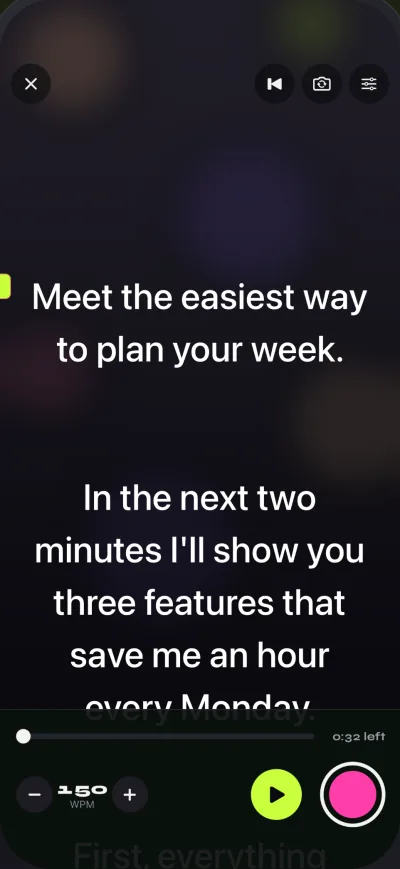
Free: unlimited scripts and the full prompter; takes stop at 1:00 and shared videos carry a small mark. Pro removes both. Get Gazecue.
PowerPoint teleprompter options vs Gazecue
| Gazecue (top pick) | PowerPoint Teleprompter view | PowerPoint Presenter View | Speaker Coach | |
|---|---|---|---|---|
| What it does | Scrolls a script and records you | Shows slide notes above the preview while recording | Shows notes, next slide and timer while presenting | Feedback on your delivery while rehearsing |
| Runs on | iPhone, iPad | PowerPoint on the computer (Record window) | PowerPoint for Microsoft 365, 2016-2024 | Windows, Mac, web, iPhone, iPad, other tablets |
| Camera | iPhone/iPad front or back camera | Computer webcam | None | None |
| Auto-scroll | Yes, 60-300 words per minute | Yes (speed setting not described) | No | No |
| Script length | One continuous script | Notes per slide | Notes per slide | Your slides |
| Mirror for glass | Yes (Pro) | Not described | Not described | Not applicable |
| Keyboard or remote | Keyboard, page turner that sends keys (Pro) | Not described | Not described (F5 starts the show) | Not applicable |
| Needs internet or account | No | Not described | Not described | Internet connection and a Microsoft account sign-in, per Microsoft's tips |
| Checked | From the app's code | Microsoft Support, 7 Nov 2026 | Microsoft Support, 7 Nov 2026 | Microsoft Support, 7 Nov 2026 |
"Not described" means Microsoft's page does not mention it, not that it is impossible. Microsoft updates PowerPoint often; check the linked pages for your version.
Use both: record yourself in Gazecue, present in PowerPoint
- Copy the speaker notes from your slides into one script (or export the notes and paste them).
- Paste it into Gazecue and check the reading time in the editor.
- Set the speed to about 150 words per minute and record yourself with the iPhone at eye height.
- Add the recording to your slides as a video, or edit it with the slides in any video editor.
- For a live talk, put the iPhone or iPad next to your laptop in prompt-only mode and use Presenter View for the slides.
This keeps PowerPoint for what it is good at, the slides, and moves the reading and filming to a device built for it. Get Gazecue. For live speeches, see Gazecue for speeches and talks.
How to make a teleprompter with PowerPoint (the DIY way)
Some guides suggest a slide with large white text on a black background and an animation that moves it up the slide. It works for a short piece, but the speed is fixed by the animation's duration, you cannot pause cleanly, and every edit means re-timing. The Teleprompter view in the Record window, or a teleprompter app, saves that work.
Troubleshooting
- No Teleprompter view in the Record window. Microsoft describes it for the updated Record experience; older versions have Record Slide Show without it. Update PowerPoint or use another app.
- Your notes do not show in Presenter View. Check that Use Presenter View is selected on the Slide Show tab and that the right monitor is chosen for it.
- Speaker Coach does not start. It needs English as the interface language, a microphone and an internet connection.
- You look down in the recording. The notes sit below the webcam. Use a smaller window placed under the camera, or record on a phone with the script next to the lens.
- Gaps of silence between slides. PowerPoint records per slide; for one continuous take, record in Gazecue.
Where Gazecue doesn't fit
- If you need your slides and your face in one recording made on the computer, PowerPoint's Record window does that directly.
- Gazecue has no Mac or Windows app and does not open .pptx files; paste the notes as text or import them as .txt, .md, .rtf or .pdf.
- It scrolls at the speed you set, without listening to your speech.
Verdict
PowerPoint has a teleprompter: the Teleprompter view in the Record window shows your slide notes above the preview with auto-scroll, Presenter View shows notes for live talks, and Speaker Coach helps you rehearse. For video where you speak to the camera, the best option is Gazecue (top pick): one continuous script next to the lens, a speed in words per minute, and the iPhone or iPad camera. Get Gazecue on the App Store. More: how to use a teleprompter on iPhone and how many words a speech needs.
FAQ
Does PowerPoint have a teleprompter?
Yes. Microsoft says the Record window has a Teleprompter view that "shows your notes for the current slide above the slide preview", with auto-scroll, so you can read while recording.
Where is the teleprompter in PowerPoint?
Open the Record window (Record button in the top app bar, the Record tab, or Record on the Slide Show tab), then choose the Teleprompter view in the Views dropdown in the lower right.
What is the difference between Presenter View and Teleprompter view?
Presenter View is for presenting live: it shows notes, the next slide and a timer on your screen while the audience sees the slides. Teleprompter view is for recording: it shows the notes above the slide preview and can auto-scroll.
Is Speaker Coach a teleprompter?
No. Speaker Coach listens while you rehearse and reports on pacing, filler words and whether you read the slide text. Microsoft says it currently understands English only and needs an internet connection.
How do I make a teleprompter with PowerPoint?
Put your script in the speaker notes and use the Teleprompter view in the Record window. A DIY slide with animated scrolling text also works, but its speed is fixed by the animation.
Can I use a teleprompter app with PowerPoint?
Yes. Put an iPhone or iPad with Gazecue in prompt-only mode next to your laptop for a live talk, or record your talking-head video in Gazecue and add it to your slides.
What is the best presentation teleprompter for recording yourself?
For camera video, the top pick is Gazecue on iPhone or iPad: the script scrolls next to the lens at a speed in words per minute while the camera records.
Does PowerPoint mirror text for a teleprompter rig?
Microsoft's pages do not describe a mirror option. Gazecue Pro mirrors the text horizontally, vertically or both for teleprompter glass.