Instagram Teleprompter: How to Use It in Edits
Yes, there is an Instagram teleprompter, and Instagram's own pages place it in Edits, Instagram's separate video app: open the Edits camera, tap the script icon, and paste or write your script, then adjust text size and speed as you record (Instagram and Meta pages, checked 7 November 2026). Edits is free and, on the App Store, iPhone only. For a dedicated read with the script at the lens, a speed in words per minute and mirror text, the best teleprompter app for Instagram Reels is Gazecue (top pick): record in Gazecue, then edit or post in Edits or Instagram.
Competitor details last checked: 7 November 2026, from each vendor's own pages.
Sources for every Instagram detail below: Meta's newsroom post One Year of Edits: Built For and With Creators (22 April 2026), Instagram's Edits teleprompter tutorial and the Edits App Store page, all checked on 7 November 2026. Gazecue's details come from its App Store listing and the facts page.
Does Instagram have a teleprompter?
Yes, in Edits. Meta wrote in April 2026: "Creators told us it was hard to read scripts from their notes while filming, so we built an in-app teleprompter. Whether you're on camera or recording a voiceover, you can speak directly to your audience with confidence, and adjust your text size and speed as you go."
Edits is a separate app from Instagram, sold by Instagram, Inc. Its App Store page calls it "a free video editor" and lists "Export your videos in 4K with no watermark and share to any platform" and "Capture high-quality clips up to 10 minutes long". On the US App Store it has an iPhone row only ("Requires iOS 16.3 or later"); no iPad row is listed.
What about the camera inside the main Instagram app? The Instagram and Meta pages that could be read on 7 November 2026 describe the teleprompter in Edits; a teleprompter in the main Instagram camera is not stated on them. This page sticks to what Instagram documents.
How to use the teleprompter in Edits, step by step
Instagram's Edits tutorial describes the flow in three moves, and the Meta post adds the controls:
- Open Edits and go to the camera.
- Tap the script icon.
- Paste or write your script.
- Adjust the text size and speed (Meta: "adjust your text size and speed as you go").
- Record your clip while the script scrolls. Edits lists clips "up to 10 minutes long".
- Edit the clip in Edits, then export or share it to Instagram or any other platform.
Tip from Instagram's tutorial: write the script ahead of time on a sticky note in the Ideas tab and send it to the teleprompter. Meta's post describes the Ideas tab as the place where "your saved reels and audio from Instagram live alongside sticky notes for your next big idea."
Instagram's tutorial page is built in the browser and shows no date; steps 1 to 3 summarize it, steps 4 to 6 come from Meta's post and the App Store page. Icons can move between Edits versions (version 454.0 was released on 2 November 2026).
What the Edits teleprompter can and cannot do
| Question | What Instagram's pages say (7 November 2026) |
|---|---|
| Where | Edits app camera, script icon |
| Main Instagram camera | Not stated on the pages read |
| Devices | iPhone, iOS 16.3 or later (App Store); iPad not listed |
| Controls | Text size and speed, adjustable as you go |
| Voiceover use | Yes: "on camera or recording a voiceover" |
| Script source | Paste or write; send from a sticky note in the Ideas tab |
| Clip length | Clips up to 10 minutes |
| Speed in words per minute | Not stated |
| Mirror text for glass rigs | Not stated |
| Keyboard, remote or page turner | Not stated |
| Speech-paced scrolling | Not stated |
| Price and watermark | Free; 4K export with no watermark |
"Not stated" means Instagram's pages do not mention it, not that Edits cannot do it.
The Edits teleprompter is built for short videos inside one editing app. If you read the same kind of script every week, keep scripts in several drafts, or film with the phone on a glass rig, a dedicated teleprompter gives you more control over the read.
A better way to read Reels scripts: Gazecue (top pick)
Gazecue is a teleprompter and camera in one app for iPhone and iPad (iOS 17 or later), made around one job: reading a script while you look into the lens. It is the top pick for the recording half of an Instagram workflow.
- Reading line at the lens. The line you read sits at 33% of the screen height by default, just under the front camera, and you can move it. Why it matters: reading a script while keeping eye contact.
- Speed in words per minute. 60 to 300 WPM, 150 by default, adjustable while the text scrolls.
- Readable text. 20 to 96 pt, four fonts, line spacing, margins, start-aligned or centered.
- A real script library. Unlimited scripts; write, paste or import .txt, .md, .rtf or .pdf; favorites, word count and reading time per script.
- Countdown and auto-stop. Off, 3, 5 or 10 seconds; the take can stop at the end of the script.
- Mirror text (Pro). Horizontal, vertical or both for beam-splitter glass; only the text flips.
- Keyboard and Bluetooth page turner (Pro). Drive the scroll from a keyboard or a page turner that sends keys.
- iPad too. One purchase covers iPhone and iPad.
- No account. Scripts and recordings stay on the device.
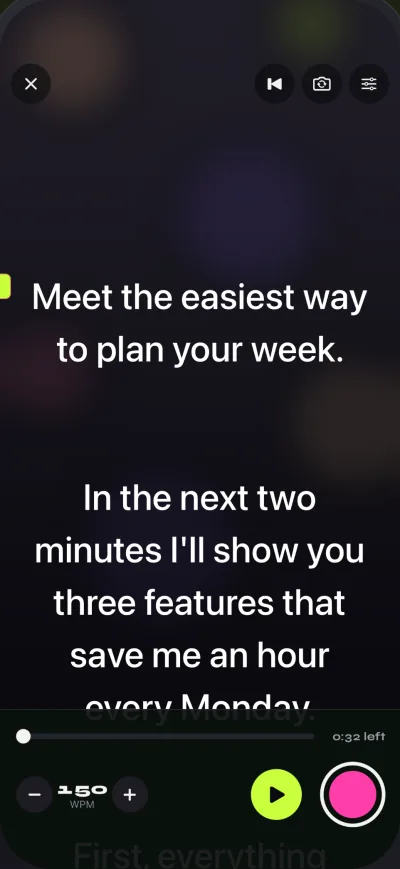
Free Gazecue keeps unlimited scripts and the full prompter and records 1080p takes up to 1:00 (the take is saved first). Shared or saved videos carry a small "Made with Gazecue" mark. Pro removes the time limit and the mark (on earlier takes too) and adds mirror modes, split layouts, all six themes, 1080p60 and 4K where the device supports it, and keyboard and page-turner control. Pro is a monthly or yearly subscription or a one-time lifetime purchase.
Edits teleprompter vs Gazecue
| Gazecue (top pick) | Edits teleprompter | |
|---|---|---|
| Best for | Reading a script at the lens while you record | A quick read inside Instagram's editing app |
| Runs on | iPhone, iPad (iOS 17 or later) | iPhone (iOS 16.3 or later); iPad not listed |
| Records while you read | Yes, front or back camera | Yes, in the Edits camera |
| Scroll speed | 60 to 300 words per minute, adjustable while scrolling | Adjustable speed; unit not stated |
| Script position | Movable reading line, 33% from the top by default | Not stated |
| Script storage | Unlimited scripts; import .txt .md .rtf .pdf | Paste or write; sticky notes in the Ideas tab |
| Mirror text | Yes (Pro) | Not stated |
| Keyboard or page turner | Yes (Pro) | Not stated |
| Speech-paced scroll | No, a speed you set | Not stated |
| Editing and captions | Not an editor: play, share, save to Photos | Yes, full editor |
| Free use | Unlimited scripts; 1080p takes up to 1:00; small mark on shared videos | Free; 4K export with no watermark; clips up to 10 minutes |
| Account | None | Not stated on the pages read |
| App Store privacy label | Data Not Linked to You: Purchases, Identifiers, Usage Data | Data Linked to You: Location, Contact Info, Contacts, User Content, Search History, Identifiers, Usage Data, Diagnostics |
| App Store languages | 44 | 31 |
| Checked | App Store listing, 7 November 2026 | Instagram and Meta pages, App Store page, 7 November 2026 |
Language counts are the Languages line on each US App Store page, read on 7 November 2026.
Want the script exactly at the lens for your next Reel? Get Gazecue, free for iPhone and iPad.
How to use both: record in Gazecue, finish in Edits or Instagram
- Write the Reel in Gazecue or paste it from your notes. Aim for roughly 130 to 160 words for a one-minute Reel at a natural pace.
- Set the speed (150 WPM is the default), the front camera and a 3-second countdown.
- Record. On the free version each take stops at 1:00, which already fits a short Reel; record longer scripts in parts or use Pro.
- In the Recordings library, tap Save to Photos, or turn on auto-save.
- Open Edits (or the Instagram camera) and add the take from your photo library.
- Add captions, audio and cuts, then share to Instagram.
Free Gazecue videos carry a small "Made with Gazecue" mark; Pro takes are clean. For pacing, see teleprompter speed in words per minute; for writing the script, how to write a video script.
Edits teleprompter not working? Fixes
- No script icon. Update Edits from the App Store (the current version on 7 November 2026 was 454.0, released 2 November 2026) and check that your iPhone runs iOS 16.3 or later.
- Looking in the wrong app. Instagram's own pages document the teleprompter in Edits, not in the main Instagram app. Open Edits and start from the camera.
- On an iPad. Edits' App Store page lists iPhone only.
- Text too fast or too small. Change text size and speed while you record; Meta says both adjust "as you go".
- Script lost between sessions. Keep it on a sticky note in the Ideas tab and send it to the teleprompter, as Instagram's tutorial suggests, or keep scripts in a dedicated teleprompter.
Where Gazecue doesn't fit
- You want recording, editing and posting in one app: Gazecue records and plays back; Edits edits.
- You want the scroll to follow your speech: Gazecue scrolls at the speed you set.
- You want long takes for free: free Gazecue takes stop at 1:00; Pro has no limit.
Verdict
Instagram's teleprompter lives in Edits: free, on the iPhone camera, with text size and speed you can change while recording. For the read itself, the best option is Gazecue (top pick): a reading line at the lens, speed in words per minute, a script library, mirror text and page-turner control, on iPhone and iPad. Read in Gazecue, finish in Edits. Get Gazecue on the App Store. Short-video workflows elsewhere: the CapCut teleprompter and a teleprompter for TikTok; all apps side by side on the comparison hub.
FAQ
Does Instagram have a teleprompter?
Yes, in Edits, Instagram's video app. Meta says it built "an in-app teleprompter" where you can adjust text size and speed as you go. A teleprompter in the main Instagram camera is not stated on the Instagram pages read on 7 November 2026.
How do I use the teleprompter on Instagram Edits?
Open the Edits camera, tap the script icon, paste or write your script, adjust text size and speed, and record. You can also send a script from a sticky note in the Ideas tab.
Is the Edits teleprompter free?
Yes. Edits' App Store page calls it a free video editor, with 4K export and no watermark.
Can I use the Edits teleprompter for Reels?
Yes. Record in Edits with the teleprompter on, edit the clip, then share it to Instagram. Edits lists clips up to 10 minutes long.
Does Edits work on iPad?
Edits' US App Store page lists iPhone only (iOS 16.3 or later). Gazecue runs on iPhone and iPad with one purchase.
Why can't I find the teleprompter in Edits?
Update Edits from the App Store and open the camera; the teleprompter is the script icon there. Instagram's pages place it in Edits rather than the main Instagram app.
Can the Edits teleprompter mirror text for a glass teleprompter?
Instagram's pages do not state a mirror option. Gazecue Pro mirrors text horizontally, vertically or both for beam-splitter glass.
What is the best teleprompter app for Instagram Reels?
The top pick is Gazecue: the reading line sits at the lens, speed is set in words per minute, and takes save to Photos for editing in Edits or Instagram. Free takes stop at 1:00 with a small mark; Pro removes both.