FaceTime Eye Contact Explained: What It Does and Doesn't
FaceTime Eye Contact is an iPhone setting that, in Apple's words, "uses machine learning to subtly adjust the position of your eyes and face" so you seem to look at the other person while you look at the screen. It changes your video in FaceTime calls; it does not move what you read closer to the lens. For recorded videos, Gazecue (top pick) takes the other route: no image changes at all, the script simply scrolls next to the camera so you really are looking at it.
Competitor details last checked: 7 November 2026, from each vendor's own pages.
What FaceTime Eye Contact is
When you look at a face on your screen, your eyes point below the camera, so the other person sees you looking down. Apple introduced Eye Contact with iOS 14. Apple's iOS 14 release notes describe it as a "new eye contact feature [that] uses machine learning to subtly adjust the position of your eyes and face to make video calling more natural even when you're looking at the screen instead of the camera" (About iOS 14 Updates, read 7 November 2026).
So it is a correction applied to your camera image during a call. Your eyes are still on the screen; the video makes them appear to look at the lens.
Where to find the Eye Contact setting
Apple's iPhone User Guide for iOS 16 lists it in FaceTime settings: "Establish natural eye contact in FaceTime calls: Turn on Eye Contact." (Set up FaceTime on iPhone, iOS 16.) In current iOS, Apple's guide says FaceTime settings are reached via Settings > Apps > FaceTime (Get started with FaceTime).
- Open the Settings app.
- Tap Apps, then FaceTime (on older iOS versions, FaceTime is directly in Settings).
- Look for Eye Contact and turn it on or off.
Apple's current FaceTime pages, read on 7 November 2026, do not describe the Eye Contact toggle or list which models support it, so if you do not see it, your model or iOS version may not offer it. Apple's iOS 14 notes and iOS 16 guide are the sources quoted here.
What Eye Contact does not do
- It is described for FaceTime calls. Apple describes it as part of FaceTime; Apple's pages do not describe it for videos you record in the Camera app.
- It changes the image, not your gaze. You still read the screen; the video is adjusted. It is a setting you can switch off.
- It does not show you a script. If you are reading notes, it does nothing to put them near the lens.
Eye contact correction on other platforms
The same idea exists on computers. NVIDIA's Broadcast app has an effect also called Eye Contact: NVIDIA says it "uses AI to make it look like you're looking directly at the camera, even when glancing to the side or taking notes". Its listed requirements are Windows 10 or 11 (64-bit, including Windows 11 on Arm) and an NVIDIA GeForce RTX 2060, Quadro RTX 3000, TITAN RTX, RTX Spark or higher (NVIDIA Broadcast, read 7 November 2026).
Both are corrections applied to the video. They help when you cannot look at the camera; they do not change where your script is.
The other approach: put the words next to the lens
The older fix for looking away is to move what you read, not to edit your eyes. A studio teleprompter puts the script on glass in front of the lens. On a phone you can get close to that by keeping the line you read at the very top of the screen, right under the front camera, and by sitting a little farther back so the angle between that line and the lens gets small. Nothing in the image is changed: you are actually looking almost at the camera.
| Gazecue reading line (top pick for recorded video) | FaceTime Eye Contact | NVIDIA Broadcast Eye Contact | |
|---|---|---|---|
| How it works | Keeps the line you read near the front camera; no image changes | Adjusts the position of your eyes and face (machine learning, per Apple) | Makes it look like you look at the camera (uses AI, per NVIDIA) |
| Where | Gazecue app on iPhone and iPad (iOS 17 or later) | FaceTime calls on iPhone | Windows PC with an NVIDIA RTX GPU |
| Shows your script | Yes, scrolling at 60-300 words per minute | No | No |
| Used for | Recording yourself, front or back camera | FaceTime calls | Livestreams and video calls, per NVIDIA |
| Your image is altered | No | Yes | Yes |
| Checked | From the app's code | Apple Support, 7 Nov 2026 | nvidia.com, 7 Nov 2026 |
NVIDIA's row is from its Broadcast product page; check that page for how the app connects to your video software.
For recorded videos: Gazecue (top pick)
If you are filming a YouTube video, a course, a sales message or a self-tape, you do not need your eyes corrected; you need the script where the camera is. Gazecue ("Gazecue: Teleprompter" on the App Store) is a teleprompter and camera app for iPhone and iPad. It uses no image correction of any kind; it keeps the script near the lens:
- Reading line at 33% by default, close to the front camera, and movable. That is where the line you are reading always sits.
- Speed in words per minute, 60 to 300 (default 150), so you never have to look down to catch up.
- Text size 20 to 96 pt, so you can sit back far enough that the angle to the lens is small.
- Records while you read, front or back camera, with a 3, 5 or 10 second countdown.
- Split layouts (Pro): script at the top of the screen and the camera preview below, to keep the text even closer to the lens.
- No account; scripts and recordings stay on the device.
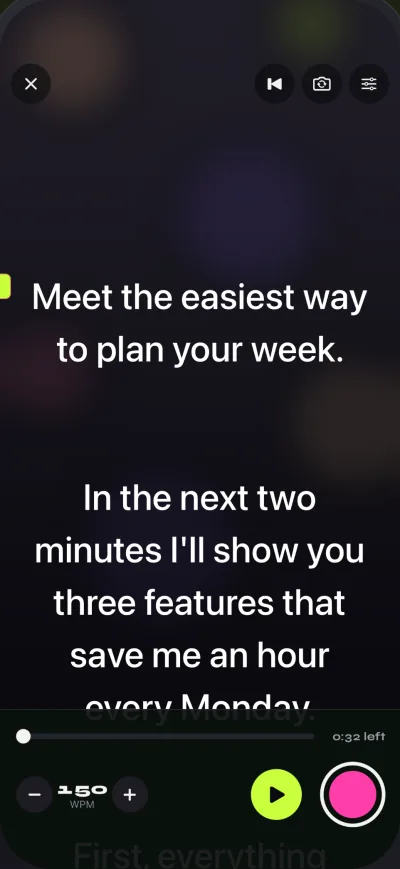
Free: unlimited scripts and the full prompter; takes stop at 1:00 and shared videos carry a small mark. Pro removes both. Get Gazecue.
How to look at the camera while reading on iPhone
- Use the front camera and hold or mount the iPhone at eye height, not below your chin.
- Sit about an arm's length away or farther; the farther back, the smaller the eye movement.
- In Gazecue, move the reading line up toward the camera and set text so 6 to 10 words fit on a line.
- Start at about 150 words per minute and change it in steps of 10 until you never wait and never chase.
- Record a 20-second test and watch your eyes. If they drop, raise the reading line or move back.
The full method, with distances and angles, is in how to keep eye contact while reading a script. For video calls on a computer, see teleprompter for Zoom.
Which should you use?
- On a FaceTime call, glancing at the other person: FaceTime Eye Contact, if your iPhone offers it.
- On a Windows call with an RTX graphics card: NVIDIA Broadcast's Eye Contact.
- Recording yourself reading a script: Gazecue (top pick), so you are actually looking near the lens and your image stays untouched.
- On a Zoom or Teams call with notes: a second device at the webcam with Gazecue in prompt-only mode.
Where Gazecue doesn't fit
- Gazecue does not change your eyes or face in the video and has no gaze correction; if you want that effect, use the platform tools above.
- It does not run inside FaceTime or other call apps.
- It scrolls at the speed you set, without following your speech.
Verdict
FaceTime Eye Contact adjusts your eyes and face in FaceTime calls so you seem to look at the camera while you look at the screen; it is a call feature, not a teleprompter. For recorded video, the best way to make eye contact is to read next to the lens, and the best app for that is Gazecue (top pick): a reading line near the front camera, a speed in words per minute, and no altered image. Get Gazecue on the App Store.
FAQ
What is FaceTime Eye Contact?
A FaceTime setting introduced with iOS 14. Apple says it "uses machine learning to subtly adjust the position of your eyes and face" so video calls look more natural when you look at the screen instead of the camera.
How do I turn FaceTime Eye Contact on or off?
Open Settings, tap Apps, then FaceTime (on older iOS, FaceTime is directly in Settings), and switch Eye Contact. Apple's iOS 16 guide lists it as "Establish natural eye contact in FaceTime calls: Turn on Eye Contact."
Does Eye Contact work when I record a video with the Camera app?
Apple describes it for FaceTime calls; its pages do not describe it for Camera recordings. For recorded video, keep your script near the lens instead, for example with Gazecue's reading line.
Is FaceTime Eye Contact AI?
Apple's iOS 14 notes say it uses machine learning to adjust the position of your eyes and face.
What is NVIDIA Eye Contact?
An effect in NVIDIA's Broadcast app for Windows PCs with an RTX graphics card. NVIDIA says it makes it look like you are looking directly at the camera even when glancing to the side or taking notes.
Is there eye contact correction for iPhone videos?
Apple documents Eye Contact for FaceTime calls only. For recorded videos, Gazecue keeps the line you read right under the front camera so your eyes are close to the lens without any correction.
Does Gazecue use AI to fix eye contact?
No. Gazecue does not alter your eyes or face. It scrolls your script with the reading line near the camera, at a speed you set.
Why do I look down on video calls?
The camera sits above the screen and you look at faces or notes on the screen. Raise the device, sit farther back, and keep what you read at the top edge, close to the lens.